For example, if a venue shifts its regular start time from 6:30pm to 7:30pm, you can update all affected bookings across Draft Bookings, Sent Booking Requests and Upcoming Bookings, in one go rather than editing them individually.
1. Go to My Gigs and Filter Your Bookings
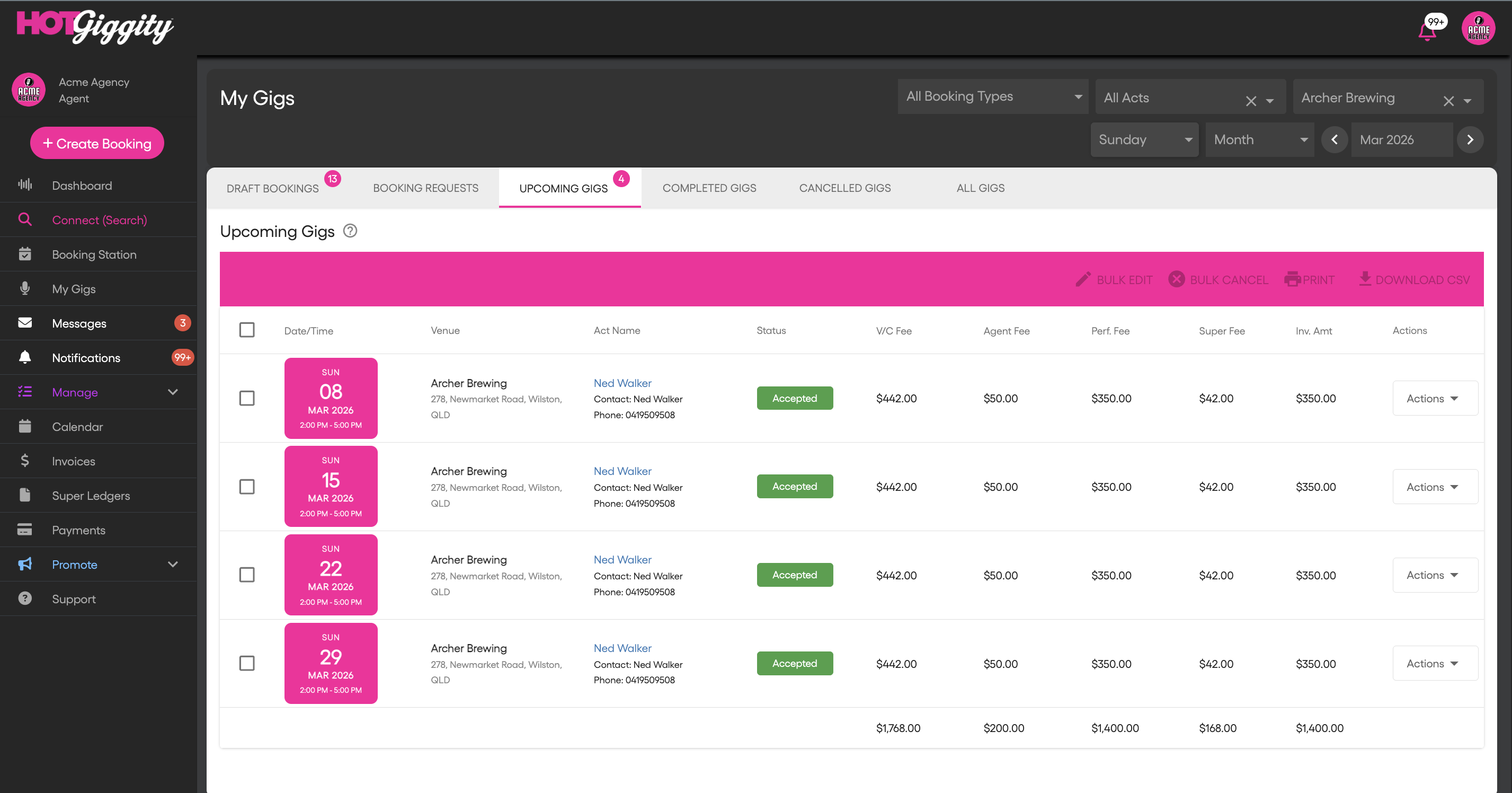
Before selecting bookings, use the filters at the top of the page to narrow down the list. This makes it much easier to find and select the right bookings.
Available filters:
- Booking Type - select Venue Bookings or Private Bookings (functions/ events)
- Venue - Show bookings for a specific venue only
- Act - Show bookings for a specific act
- Day of Week - Filter to a specific day (e.g. only Fridays). This is especially useful when a venue changes the schedule for a particular night.
- Date Range - Set a start and end date to focus on a specific period
The All Gigs tab is especially useful when you need to update bookings that span different statuses. For example, if a venue changes its Friday night start time from 7:00 PM to 8:00 PM, you may have bookings for that night sitting across Draft Bookings, Booking Requests, and Upcoming Gigs. Rather than switching between tabs and editing each group separately, you can handle them all from one place.
How to do it:
- Go to My Gigs and select the All Gigs tab
- Use the Venue filter to select the venue that's changing its times
- Use the Day of Week filter to select the relevant day (e.g. Friday)
- Optionally set a Date Range to focus on a specific period
- Select the bookings you want to update — you'll see a mix of statuses (Draft, Sent, Accepted, etc.) all in one list
- Click Bulk Edit and follow the wizard to apply your changes across all selected bookings, regardless of their status
This saves you from having to repeat the same edit three times across different tabs.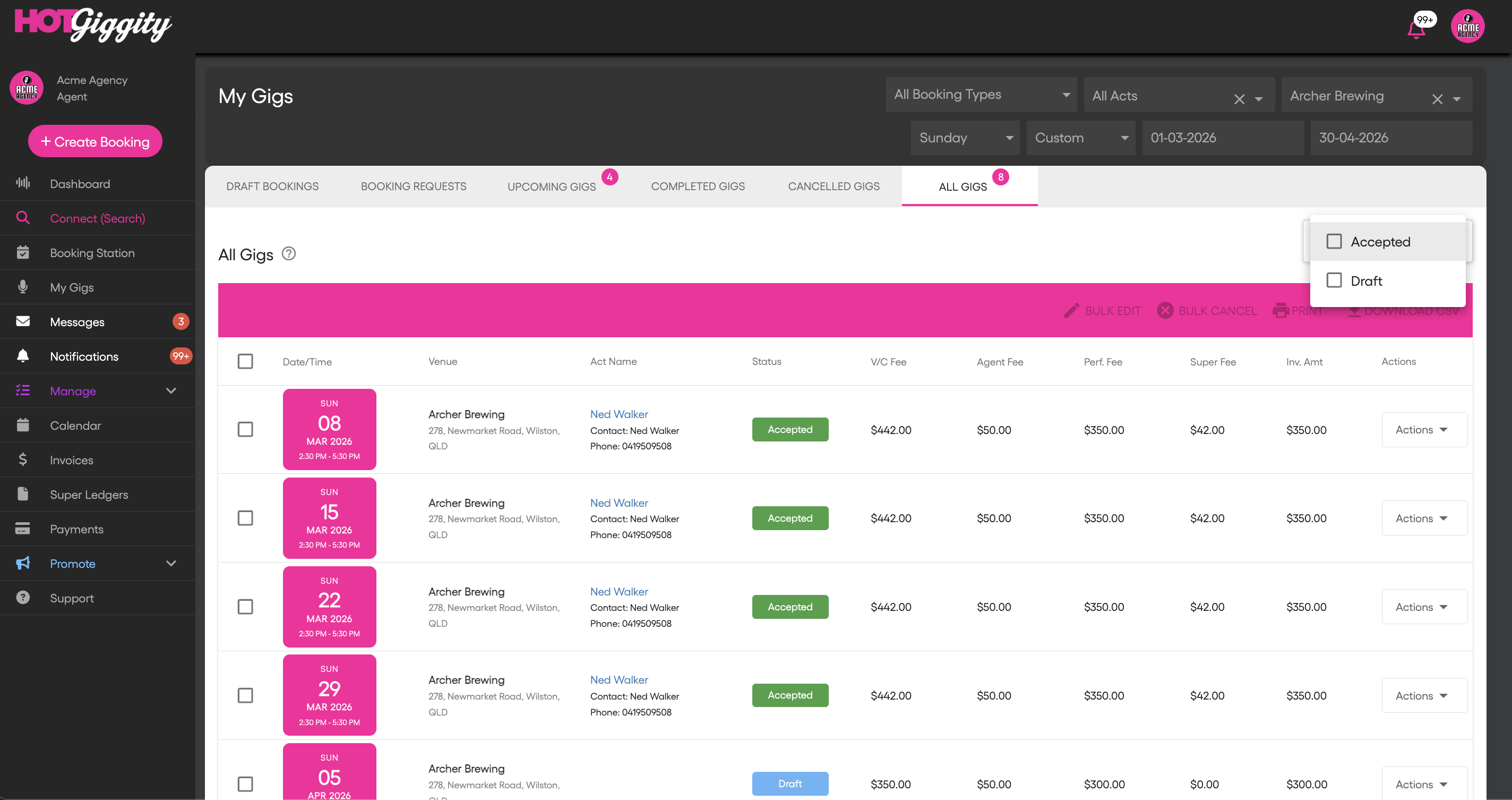
2. Select the Bookings You Want to Edit
Once your bookings are filtered, use the checkboxes to select the ones you want to update:
- Select individual bookings by clicking the checkbox on each row
- Select all visible bookings by clicking the checkbox in the table header
When you select one or more bookings, the toolbar changes to show the number of bookings selected along with the available bulk actions.
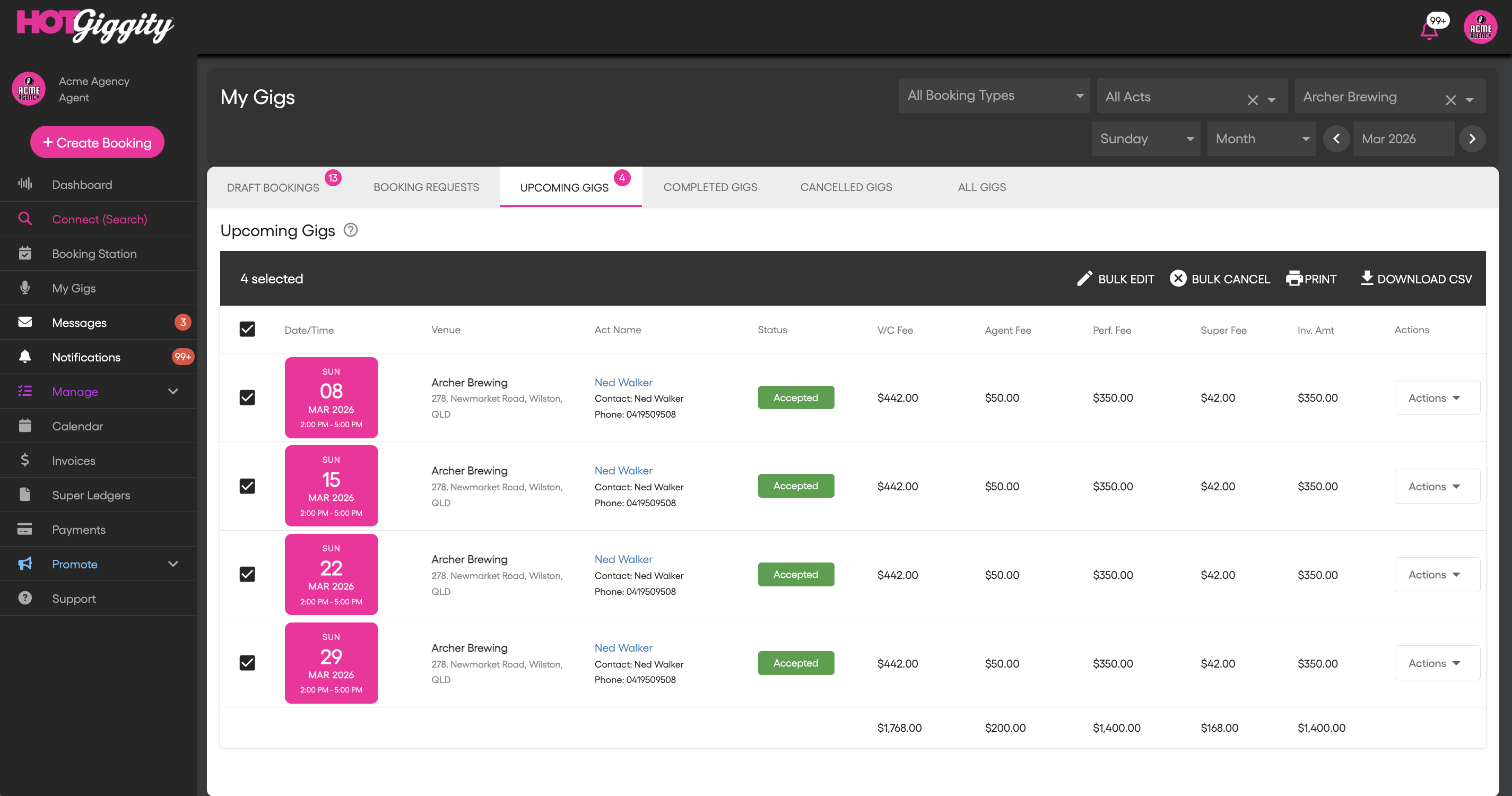
Important: You can select a maximum of 20 bookings per bulk edit.
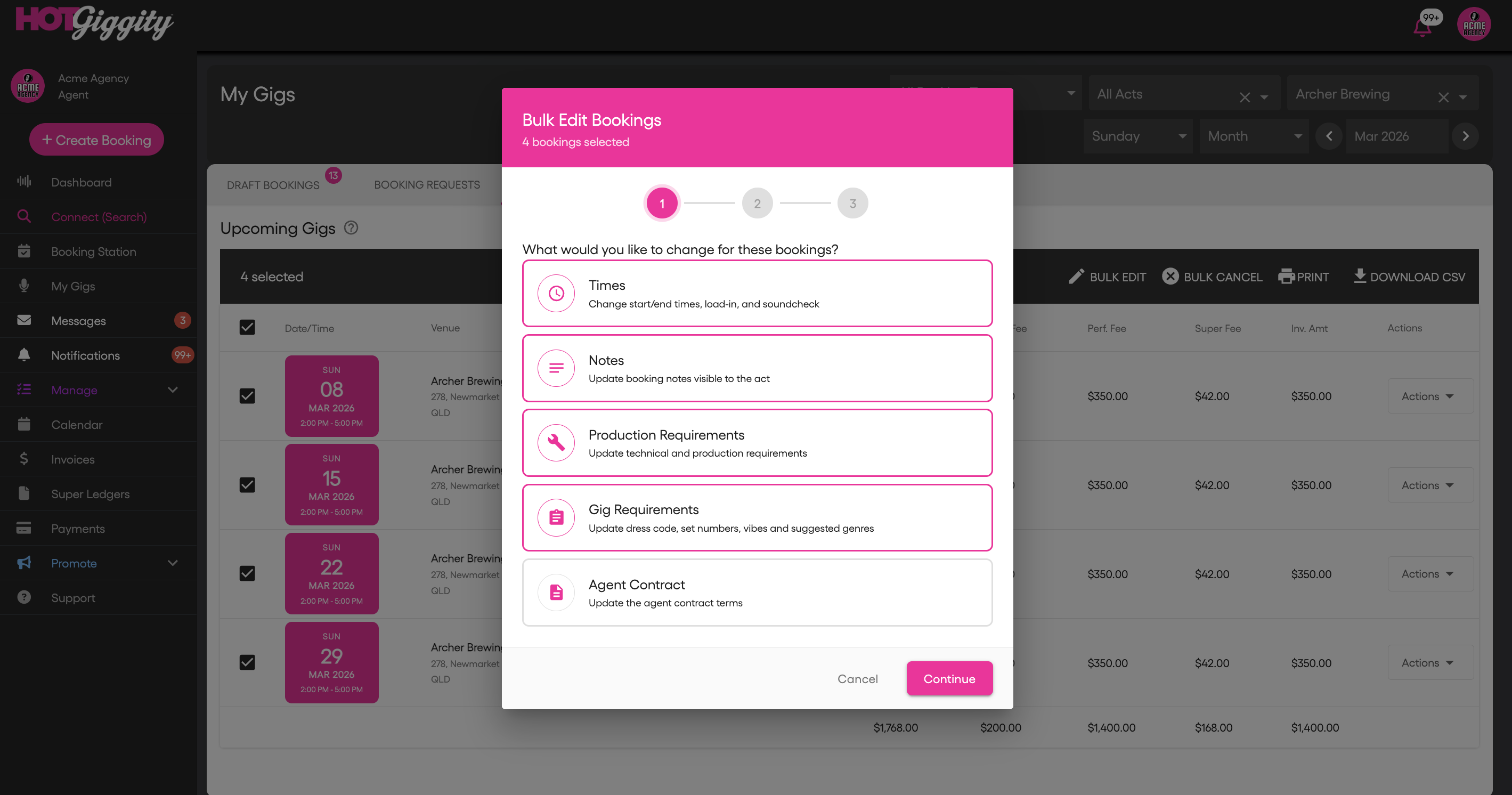
With your bookings selected, click the Bulk Edit button in the toolbar. This opens the Bulk Edit wizard.
The first step asks: "What would you like to change for these bookings?"
You'll see five options presented as cards. Click on one or more to select them:
| Field | What It Changes |
|---|---|
| Times | Start time, end time, load-in times, and soundcheck times |
| Notes | Booking notes that are visible to the act |
| Production Requirements | Technical and production specifications |
| Gig Requirements | Dress code, number of sets, vibes, and genres |
| Agent Contract | The agent contract terms |
You can select multiple fields to edit in a single bulk update.
Click Continue to proceed.
Based on what you selected in Step 1, you'll see the relevant editors:
- Start Time and End Time — Set the performance times using the time pickers
- Load-in Start and Load-in End — Set when load-in begins and ends
- Soundcheck Start and Soundcheck End — Set the soundcheck window
Auto Time-Shift: When you change the performance start time, all other times (end time, load-in, soundcheck) automatically shift by the same amount. For example, if you move the start time forward by one hour, the load-in and soundcheck times will also shift forward by one hour. You can still manually adjust individual times after the auto-shift.
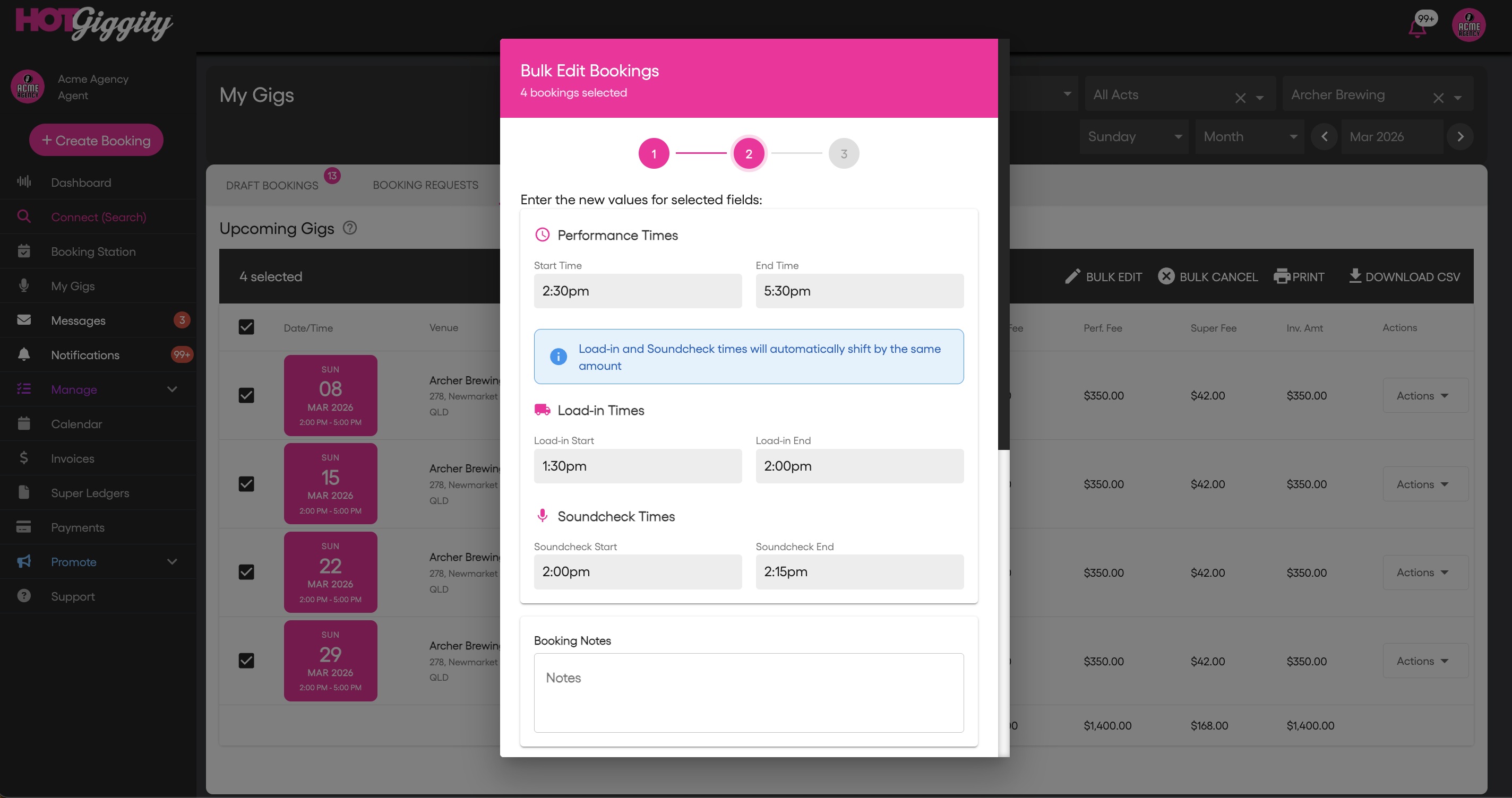
A text field where you enter booking notes. The text you enter will replace the existing notes on all selected bookings.
A text field for technical and production requirements. This replaces existing production notes on all selected bookings.
- Number of Sets — Choose from 0 to 10 using a dropdown
- Dress — Free text field for dress code
- Vibes — Multi-select dropdown to tag the vibe of the gig
- Genres — Multi-select dropdown to tag genres
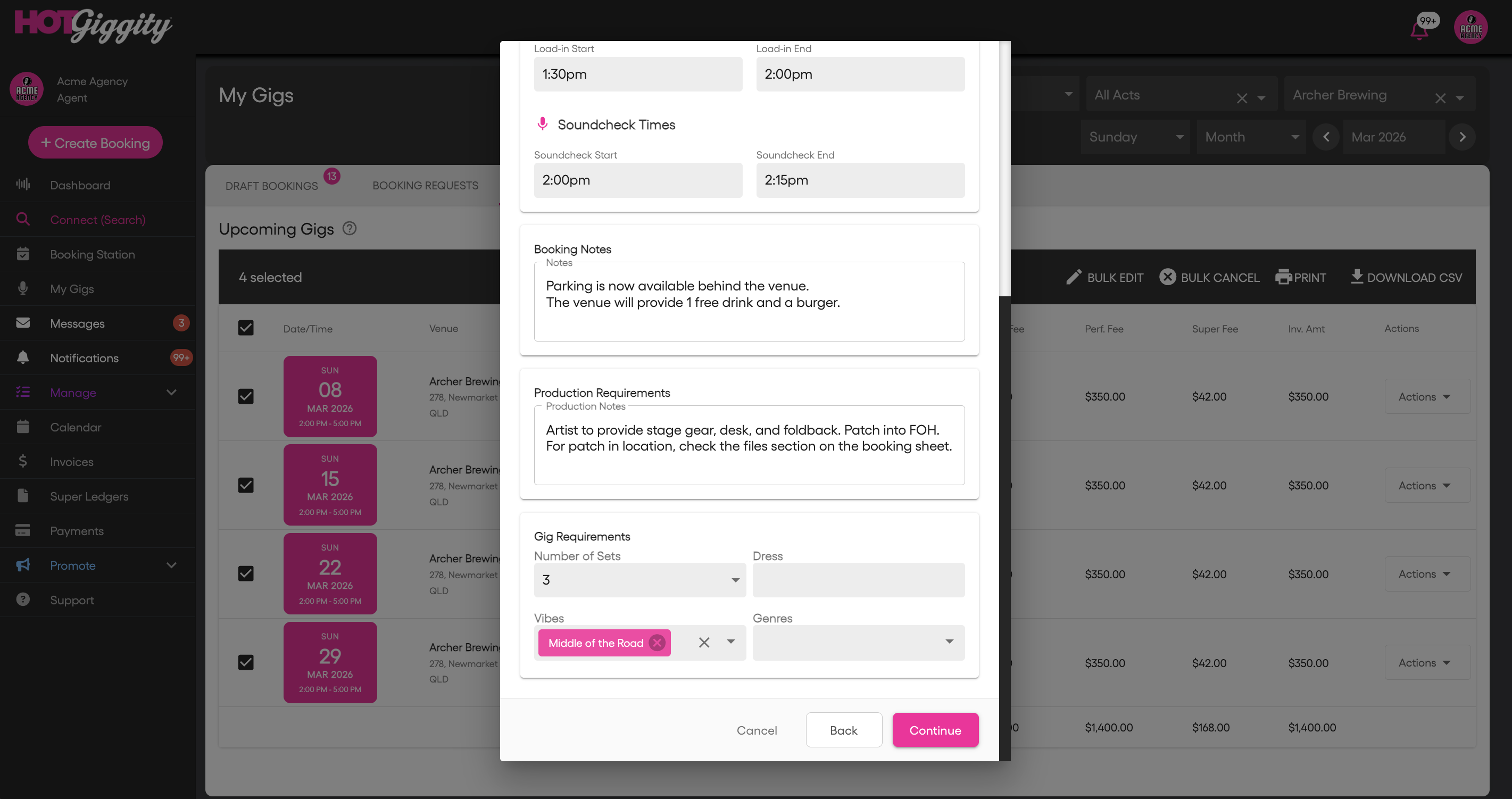
Agent Contract
A text field for updating agent contract terms across all selected bookings.
Click Continue to proceed.
Before applying your changes, you'll see a summary of:
- Changes to Apply — A list of all the fields and values that will be updated
- Affected Bookings — A table showing the date, act name, and venue for each booking that will be updated
Multi-venue warning: If your selected bookings span multiple venues, you'll see a warning banner letting you know. This helps prevent accidentally applying changes intended for one venue to bookings at another.
Review everything carefully, then click Apply Changes.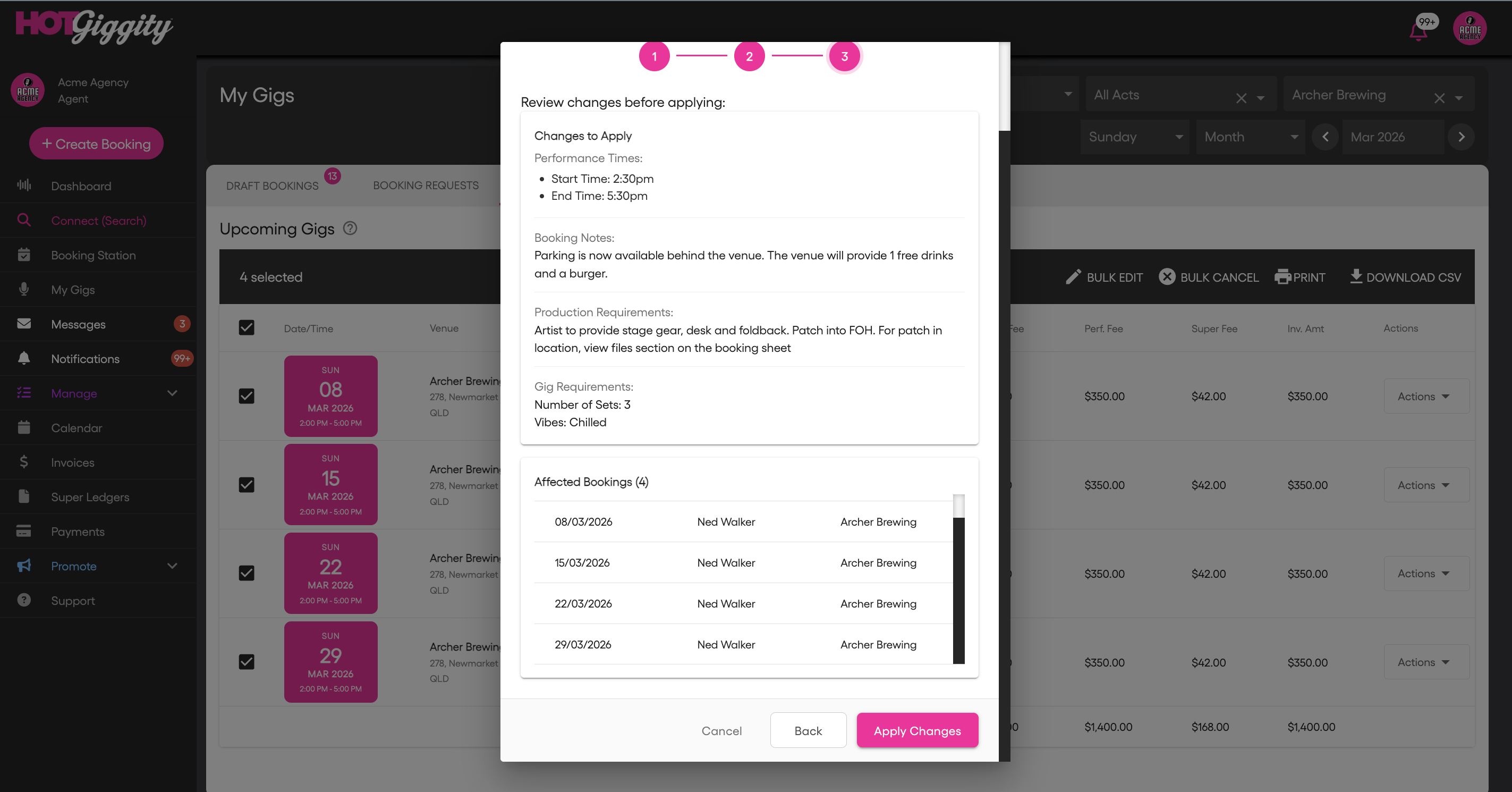
After the update completes, you'll see one of three outcomes:
- Successfully Updated — All bookings were updated. You'll see a green confirmation with a list of updated bookings.
- Partially Updated — Some bookings were updated but others failed. You'll see which ones succeeded and which failed, along with the reason for each failure (e.g. "Booking has been cancelled" or "Booking has paid invoices and cannot be modified").
- Update Failed — None of the bookings could be updated. You'll see the failure reasons.
Click Done to close the modal.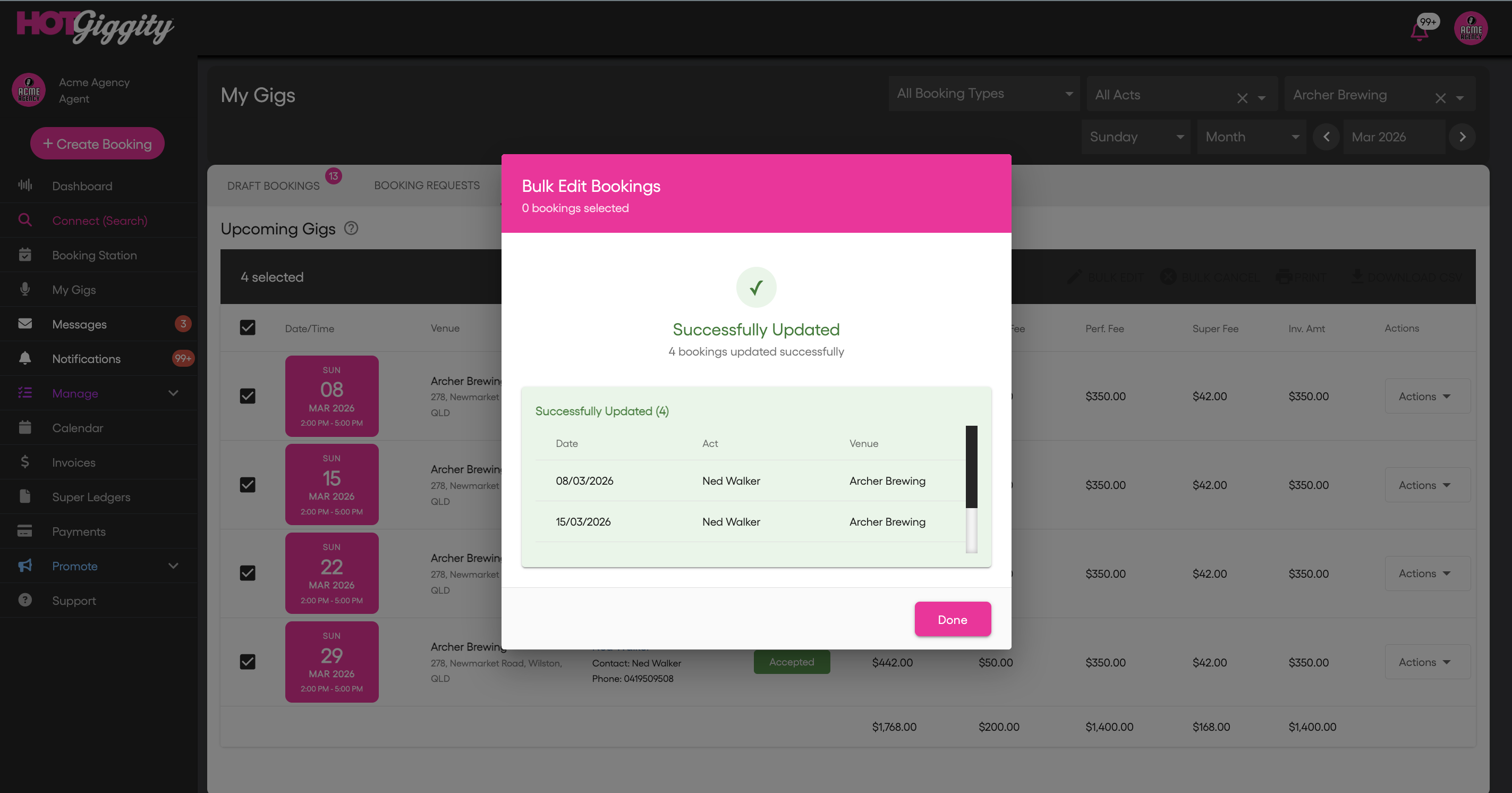
When you have bookings selected, two additional actions are available alongside Bulk Edit:
Click Download CSV to export the selected bookings as a spreadsheet file. The CSV includes:
- Date, start time, end time
- Venue name and address
- Act name
- Booking status
- Fee breakdown (venue/client fee, agent fee, performance fee, invoice amount)
The file is automatically named with your agency name, venue, and date range.
Click Print to open a print-friendly view of the selected bookings. (Available on Upcoming Gigs and All Gigs tabs)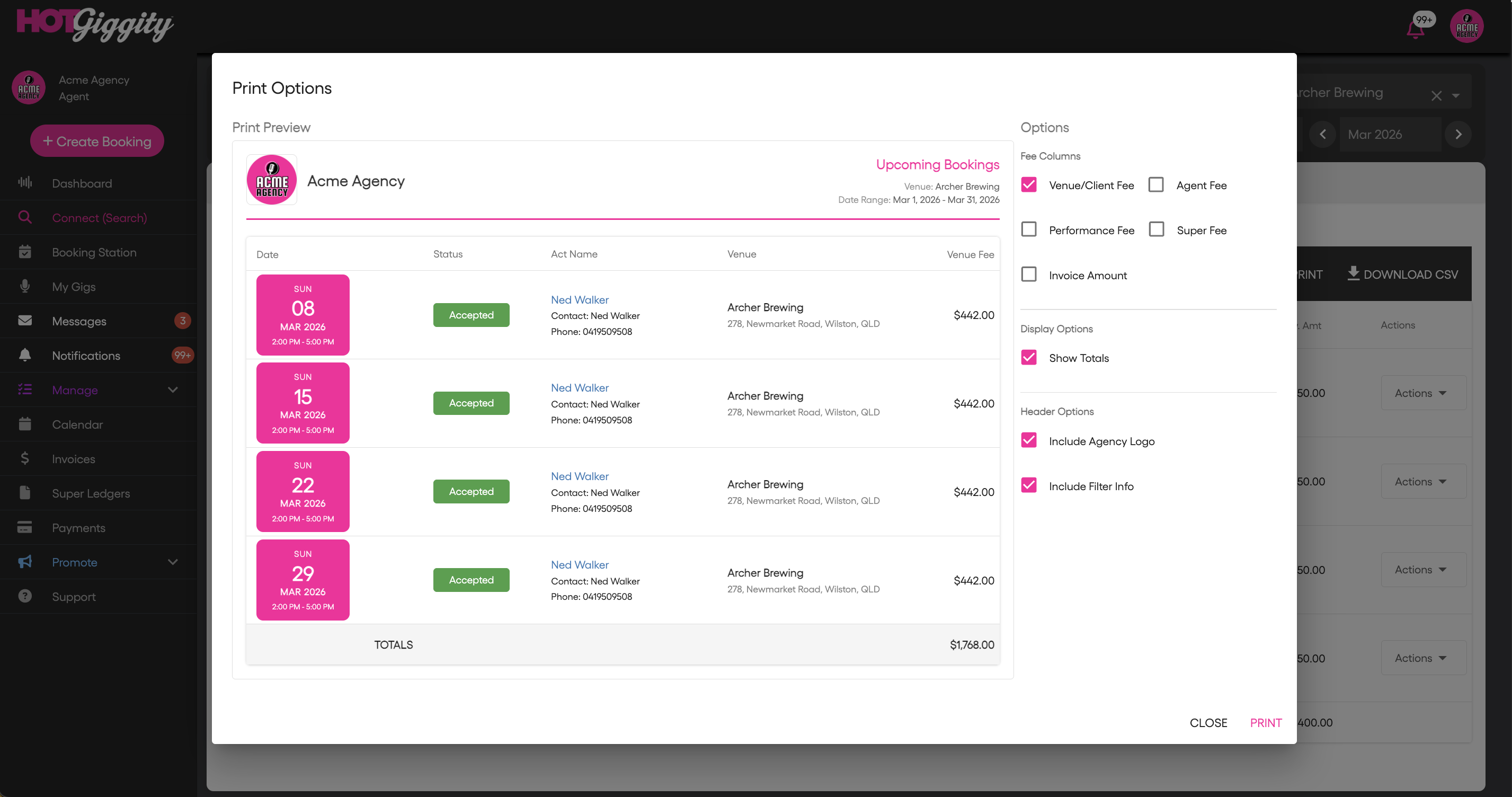
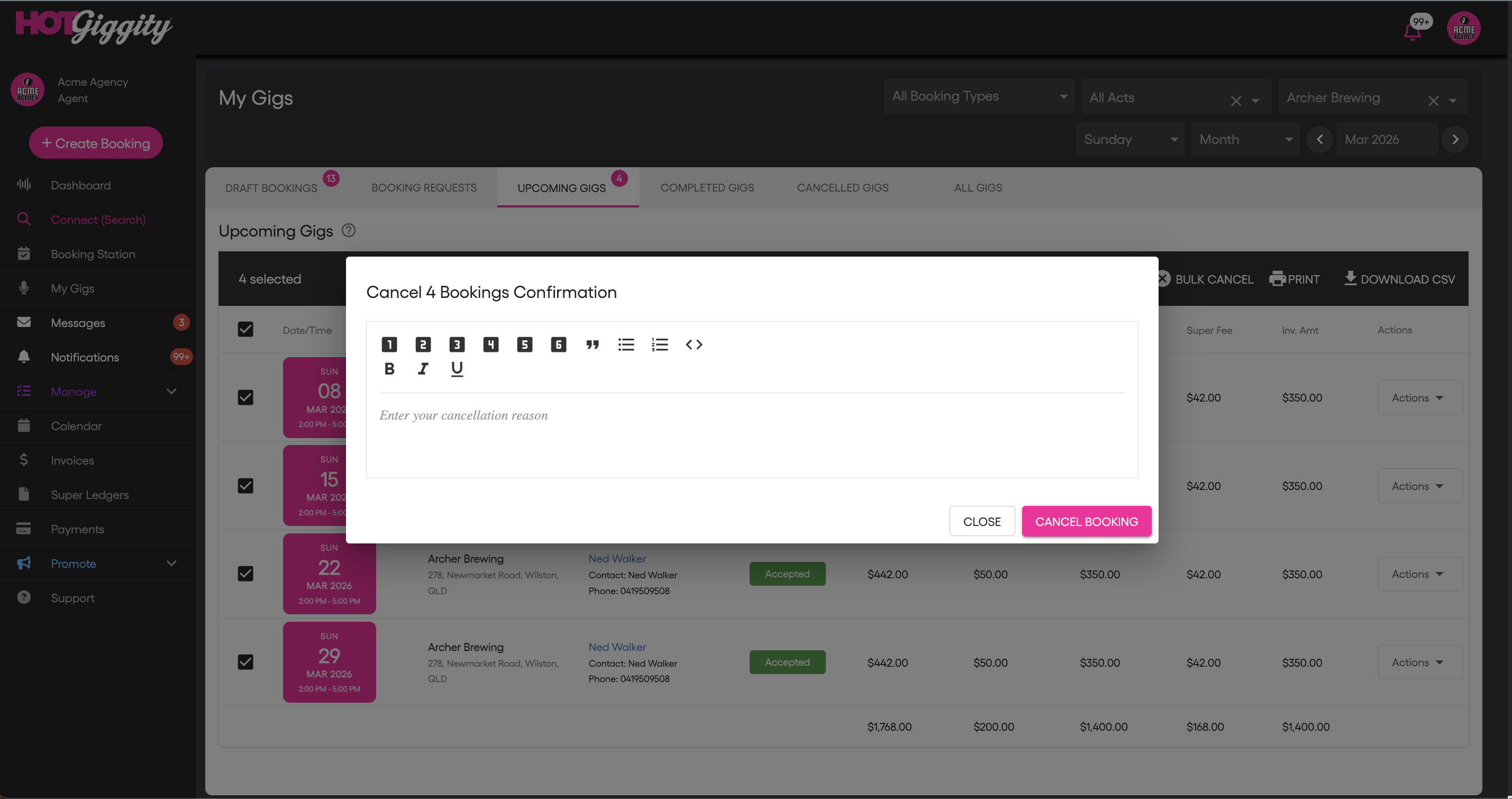
To cancel a series of bookings on the Upcoming Gigs tab:
- Select all of the bookings you want to cancel
- Click the Bulk Cancel button on the action row
- You will see the Cancel Booking Confirmation pop-up
- Enter the cancellation reason and click Cancel Booking
- 20 booking limit — You can bulk edit up to 20 bookings at a time. If you need to update more, run the bulk edit in batches.
- Use filters first — Narrowing down your list with the venue and day-of-week filters before selecting makes the process much faster and reduces the chance of updating the wrong bookings.
- Auto time-shift saves time — When changing performance start times, take advantage of the automatic time-shift feature. All related times adjust together, so you usually only need to change one field.
- "Multiple values" fields are safe to leave empty — If a field shows "Multiple values", leaving it blank preserves the existing value on each individual booking. Only fill in a value if you want to overwrite all of them.
- Multi-venue warning — Pay attention to the warning if your selection includes bookings from different venues. Make sure this is intentional before applying changes.
- Cancelled and invoiced bookings can't be edited — If any selected bookings have been cancelled or have paid invoices, those will fail during the update. The results screen will show you exactly which ones failed and why.
Need more help? Contact us at support@hotgiggity.com
Was this article helpful?
That’s Great!
Thank you for your feedback
Sorry! We couldn't be helpful
Thank you for your feedback
Feedback sent
We appreciate your effort and will try to fix the article