Member Verification Request (MVR) is a SuperStream check that confirms whether a super fund can match a person's details to a member account and accept contributions for them. It helps identify incorrect details before money is sent, reducing failed payments and refunds.
The ATO's guidance requires employers to use MVR before a first-time super guarantee contribution from 1 July 2026, where their software supports it and the receiving fund has transitioned to the new standard. MVR is not intended to be repeated before every pay run.
Some funds do not yet support MVR. The fund rollout runs through to 28 February 2027, with full industry readiness expected from 1 March 2027. During this transition, a Not supported result does not mean the artist or player's membership details are incorrect.
Read the ATO's MVR requirements in section 1.2.2 of the Member Registration and Contributions V3 User Guide (PDF, pages 7–8). For the fund implementation deadline, see SuperChoice's MVR rollout guidance.
This guide is for venues, agencies and act owners managing super payments in HG Super Pay. Artists and players appear under the Employees tab.
Important: Verification does not submit a payment or guarantee that a future payment will succeed. A Verified result does not mean super has been paid.
Do I need to run an MVR check?
If super payments have already been processed successfully for an artist or player and their details have not changed, you do not need to run an MVR check just because this feature is now available. Do not run checks across your existing employee list as a routine exercise.
MVR is required when syncing a new employee or after an existing member updates their personal or super fund details. For a new employee, SYNC EMPLOYEE starts the check automatically. For changed details, complete UPDATE EMPLOYEE and run the required verification check. Some funds do not yet support MVR, as explained above.
Starting a check can hold up future payments for that artist or player. While their status is Pending, you must wait for verification to complete before paying their super. This usually takes 24–48 hours. Avoid unnecessary checks on people whose payments are already processing successfully.
Before you start
- Your employer must be registered with HG Super Pay.
- New artists or players can be synced to the selected employer in Step 2.
- If you manage multiple venues or organisations, select the correct employer before checking or updating anyone's details.
1. Open the Employees tab
Go to HG Super Pay → Employees and find the artist or player under the correct employer. Their verification result appears under Fund verification.
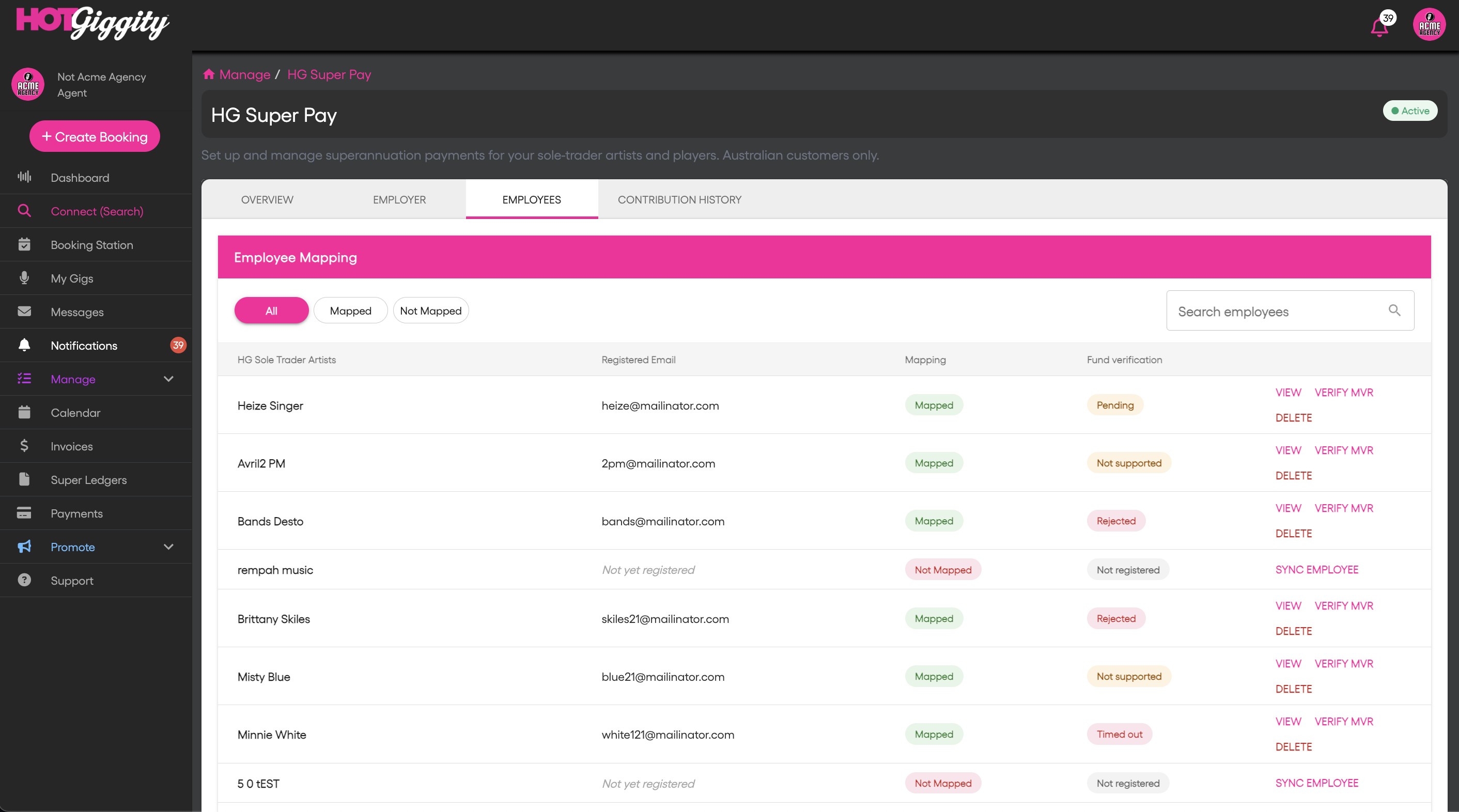
The Employees tab shows each artist or player's mapping and Fund verification status. Select the image to view it at full size.
2. Sync a new employee and wait for verification
If the employee has not yet been synced to this employer, select SYNC EMPLOYEE. Review their personal and super fund details, including any Missing required fields warning.
If information is missing or incorrect, ask the artist to update it under Manage → My Personal Profile → Financials. You will receive an email when their details have been updated. Return to the Employees tab, review the updated information and complete SYNC EMPLOYEE.
Sync Employee automatically runs the MVR check and sets Fund verification to Pending. You do not need to select VERIFY MVR separately for this initial check.
Wait for verification to complete, usually 24–48 hours. Super payments for this person cannot proceed while verification is pending.
Once the status is Verified, no further verification action is needed. Skip Steps 3 and 4 and continue to Step 5 to review the result. Verified does not mean super has been paid; continue through the normal payment workflow when you are ready to pay.
3. For an existing employee, open VERIFY MVR if required
Use this step only when an existing employee needs a separate check, such as after their details change. Do not repeat the check for a newly synced employee whose status is Pending or Verified.
Select VERIFY MVR beside the employee. This opens an employee-details popup. Opening the popup does not start verification.
Review the available information, including:
- Name and email.
- Date of birth, full address (including street number) and employee ABN (not required for Hobbyists).
- Masked Tax File Number information.
- Super fund and membership details, including any relevant custom-fund information.
- Current Fund verification status and missing-field warnings.
If anything needs correcting, cancel the popup. Ask the artist to update their Financial profile, then complete UPDATE EMPLOYEE to send the latest details to HG Super Pay before running the check. Opening VERIFY MVR does not sync or update the employee.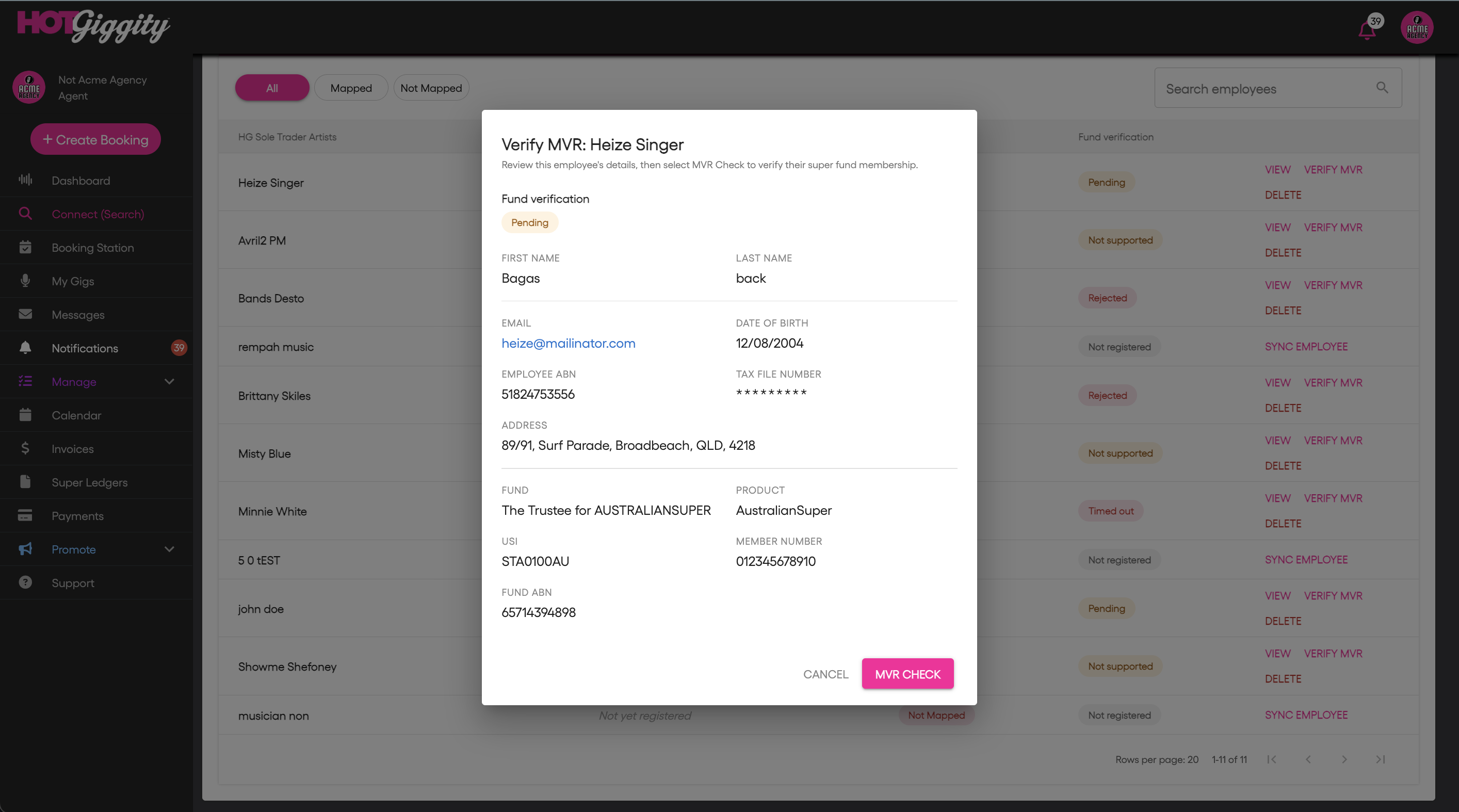
Review the employee and super fund details before selecting MVR CHECK. Select the image to view it at full size.
4. Select MVR Check
Inside the popup, select MVR Check to submit verification. The button becomes available once the employee preview has loaded successfully.
While the request is being submitted, the button shows Checking... and prevents duplicate checks.
Closing the popup before selecting MVR Check does not run a check. Closing it after submitting does not cancel a request already sent.
5. Review the returned status and reason
When the request completes, the popup closes and the Employees list refreshes. Check the actual result under Fund verification. The result may appear immediately as Verified, Rejected, Not supported or another status. It does not always go through Pending first.
Hover over, focus on or tap the status indicator to read its explanation and any reason supplied by the service. Resolve outstanding issues before payment and continue through the normal payment validation process.
If the result is Pending, wait for verification to complete. This usually takes 24–48 hours. Future super payments for that person are held up until the MVR process completes. Do not submit repeated checks while waiting. If the status remains unresolved, contact Hot Giggity support.
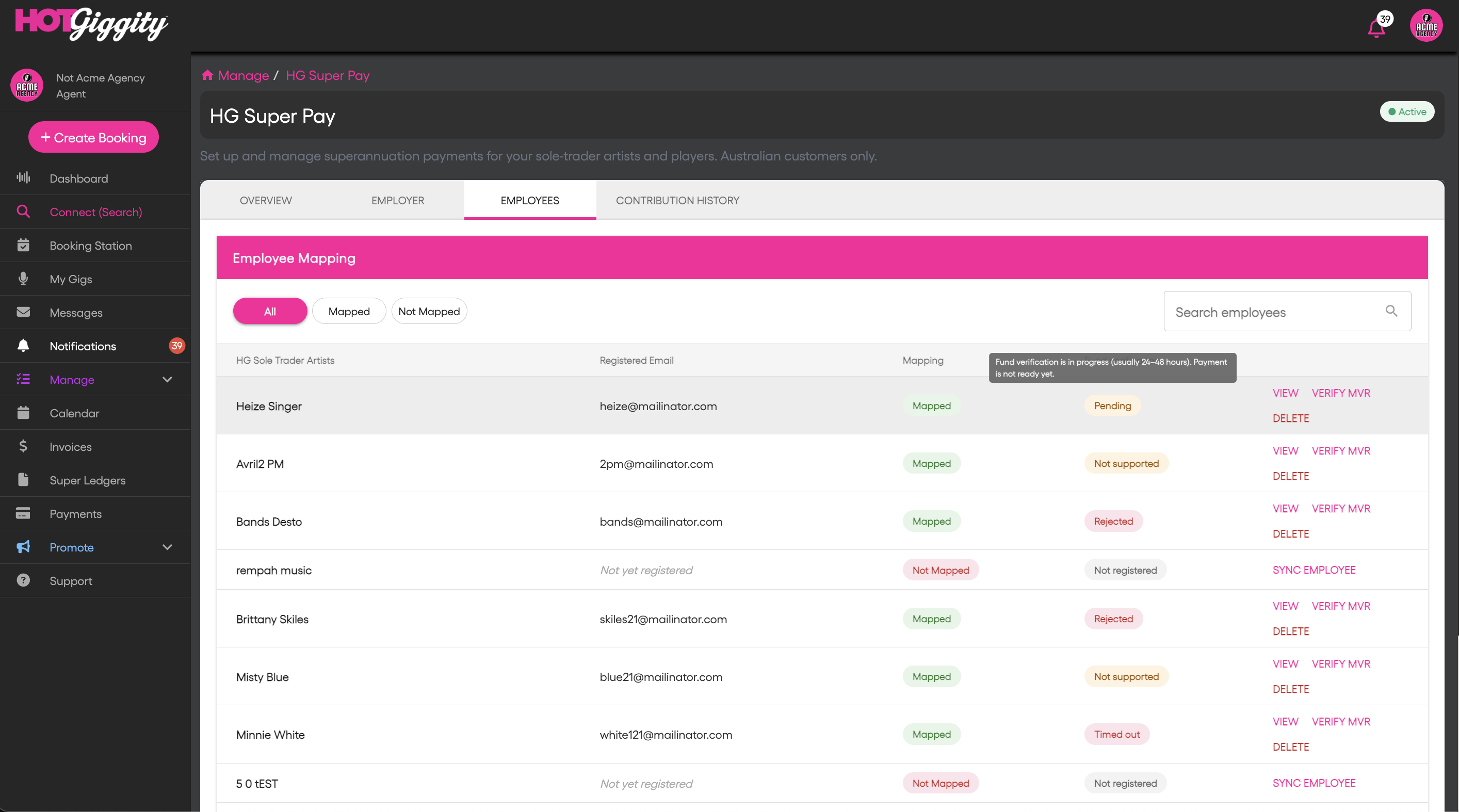
Pending: wait for verification to finish before paying this person's super. Select the image to view it at full size.
If verification is rejected
Hover over Rejected to read the reason. In the example below, the fund returned Member not found with the supplied information. Ask the artist to check and correct their Financial profile, complete UPDATE EMPLOYEE, then run the required verification check.
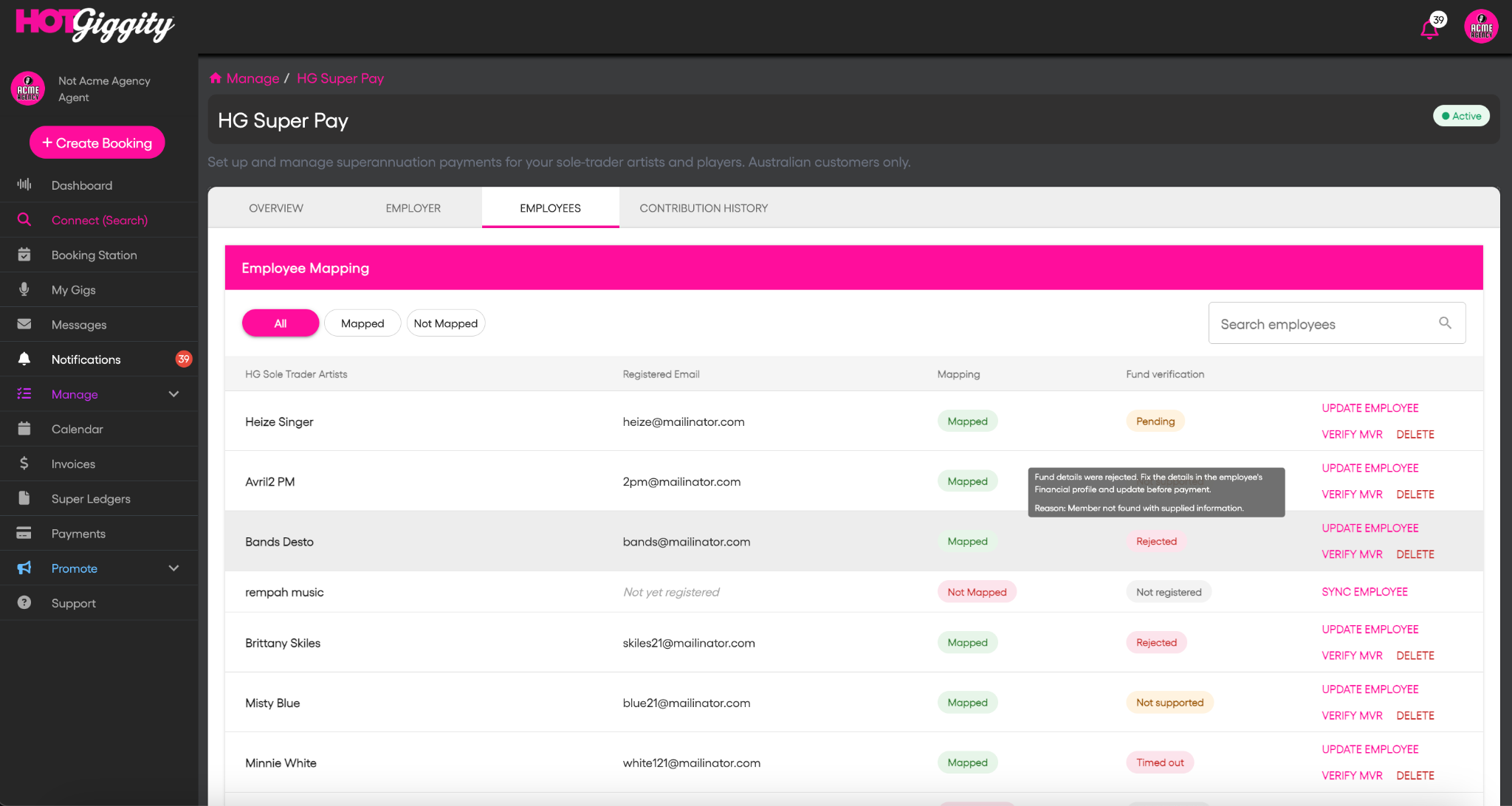
Rejected: the hover message explains why the fund could not verify the supplied details. Select the image to view it at full size.
Fund verification statuses
The status applies to the membership check, not the payment itself. Hover over a status to read its explanation and any reason returned by the fund.
| Status | What it means | What to do |
|---|---|---|
| Not registered | The employee is not synced to this employer. | Review their details and complete SYNC EMPLOYEE. This automatically starts MVR; wait for the result. |
| Not checked | An MVR check has not been run for this employee. | If a check is required for a new employee or updated details, select VERIFY MVR, review the details, then select MVR Check. |
| Pending | Fund verification is in progress, usually taking 24–48 hours. Payment is not ready yet. | Wait for verification to complete. Do not submit repeated checks while waiting. |
| Verified | The fund details have been verified. | No further MVR action is needed. Continue with normal payment validation. Verified does not mean super has been paid. |
| Rejected | The fund rejected the supplied membership details. | Hover over the status to see the reason. Ask the artist to correct their Financial profile, complete UPDATE EMPLOYEE and run the required verification check. |
| Not supported | The fund does not yet support member verification. | Review the fund details separately. This result does not itself mean the details are incorrect. You can still map an employee where MVR is not yet supported. |
| Timed out | The fund did not respond. | Review the details and use UPDATE EMPLOYEE to retry, as instructed by the interface. |
| Unrecognised status | The interface does not recognise the returned status. | Record the exact status and contact support before proceeding. |
About the MVR introduction message
If you have HG Super Pay active, you will see the Introducing MVR: super fund pre-checks popup on the HG Super Pay and Super Ledgers pages until you acknowledge it by selecting I understand. The acknowledgement applies to the profile you are using. Selecting Close dismisses it without saving an acknowledgement, so it may appear again later.
Changing venues or employers under the same profile does not reset your acknowledgement. Another profile has its own acknowledgement.
Neither option starts verification or changes payment eligibility.
Having issues?
If you are having any issues with super fund verification, please contact support@hotgiggity.com.
Was this article helpful?
That’s Great!
Thank you for your feedback
Sorry! We couldn't be helpful
Thank you for your feedback
Feedback sent
We appreciate your effort and will try to fix the article