Why HG Super Pay?
HG Super Pay helps venue groups manage super contributions for eligible sole-trader artists and players without changing how they pay performance fees.
You continue paying artists directly. Super contributions submitted through HG Super Pay are direct debited from the nominated contribution bank account and processed through SuperChoice's SuperStream clearing-house service.
- Choose a shared group employer setup or independent employer setups for each venue.
- Connect artists to the relevant employer and check their fund verification.
- Review and validate super ledger items before authorising a payment.
- Track submitted contributions separately from your HG Super Pay service charges.
Your employer model controls how you organise HG Super Pay. It does not, by itself, determine which legal entity owes super.
About This Guide
This guide covers both Group Employer and Per-Venue Employer for venue groups. It takes you from selecting the correct organisation through activation, employer registration, employee setup, payment and tracking.
For a venue that is not part of a group, use the Single Venues - Complete Setup & Payment Guide.
Payday Super timing: For qualifying earnings paid from 1 July 2026, super generally needs to reach the worker's fund, with the information needed to allocate it, within 7 business days after payment. This includes eligible contractors and performers covered by the super guarantee rules. Submit super on the day you pay the artist wherever possible: direct-debit and clearing-house processing use part of this time. Limited exceptions apply, including certain first contributions. Check the ATO's current payment deadlines.
Before you start:
| Topic | Details |
|---|---|
| Availability | Australian customers; the organisation should use AUD. Use the desktop version if your app says the feature is desktop-only. |
| Access | Use the relevant venue-group staff profile. The HG Super Pay menu is available to organisation owners and staff with invoice access, including on free plans. Access to the menu is not approval to make payments; add-on activation is separate. If the page redirects or the menu is missing, ask the organisation owner or support to check your access. |
| Employer identity | Confirm the responsible employer, its ABN and authorised signatory with your accountant or adviser before choosing a model or registering. A group name or a venue name is not proof of legal employer identity. |
| Bank and billing details | Have the employer's contribution and refund bank details ready, plus the billing card needed for add-on activation. The contribution bank account and service-fee card have different purposes. |
| Artists | Ask artists to complete their own Financial profiles before your first payment. You cannot enter their sensitive details on their behalf in the employee setup window. |
| Timing | The registration confirmation advises 24–48 hours for approval. This is an estimate, not a guaranteed turnaround or an extension of a super deadline. Start early. |
| Costs | The group hub displays $1.50 ex GST per submission and Billed 5th of next month. Confirm the applicable charging unit and terms with support before relying on a cost estimate. |
Choose the Right Employer Model
Decide this before activating subscriptions or entering employer details.
| What changes? | Group Employer | Per-Venue Employer |
|---|---|---|
| Setup and activation | One employer record and one subscription cover the group's venues. Activate in the group hub. | Each venue has an independent employer record and subscription. Select and activate each venue separately. |
| Employer and ABN | Enter the details of the employer responsible for the group contributions you intend to submit. Confirm that a shared setup is appropriate for your legal arrangements. | Enter the correct employer details for the selected venue. Do not assume the venue's trading name is the legal employer, or that every venue must have a different ABN. |
| Contribution and refund accounts | Configure the bank details for the shared employer setup. | Configure and check the accounts independently for each selected venue's employer setup. |
| Choosing the context | Choose the correct organisation. There is no per-venue employer selector in this mode. | Choose the organisation, then use Select Venue. The first accessible venue may already be selected: check it before making changes. |
| Employee mapping | Work with the employee list for the shared employer context. Employees will appear here when bookings are created for them. | Work with the employee list for the selected venue's employer. An artist working at several venues may need to be synced in each relevant employer context. |
| Contribution history | Requests group-scoped history for the chosen organisation. Check the returned contributions and filters when reconciling. | Shows contribution history for the selected venue's employer context. Switch venues to review another setup. |
| Billing and cards | The hub has four core tabs; it does not add venue-specific billing/card tabs. Use the group's account membership and billing controls where available, or ask the billing owner/support. | The selected real venue additionally has Billing History and Manage Card. Billing and card changes apply to that venue's subscription. |
| Changing the model | Contact support after the choice is confirmed. | Contact support after the choice is confirmed. |
One-time choice: The confirmation says the employer model can only be chosen once. If you are unsure, select Cancel and ask support@hotgiggity.com before proceeding. Do not activate a second setup to try to move existing records yourself.
Setup Steps
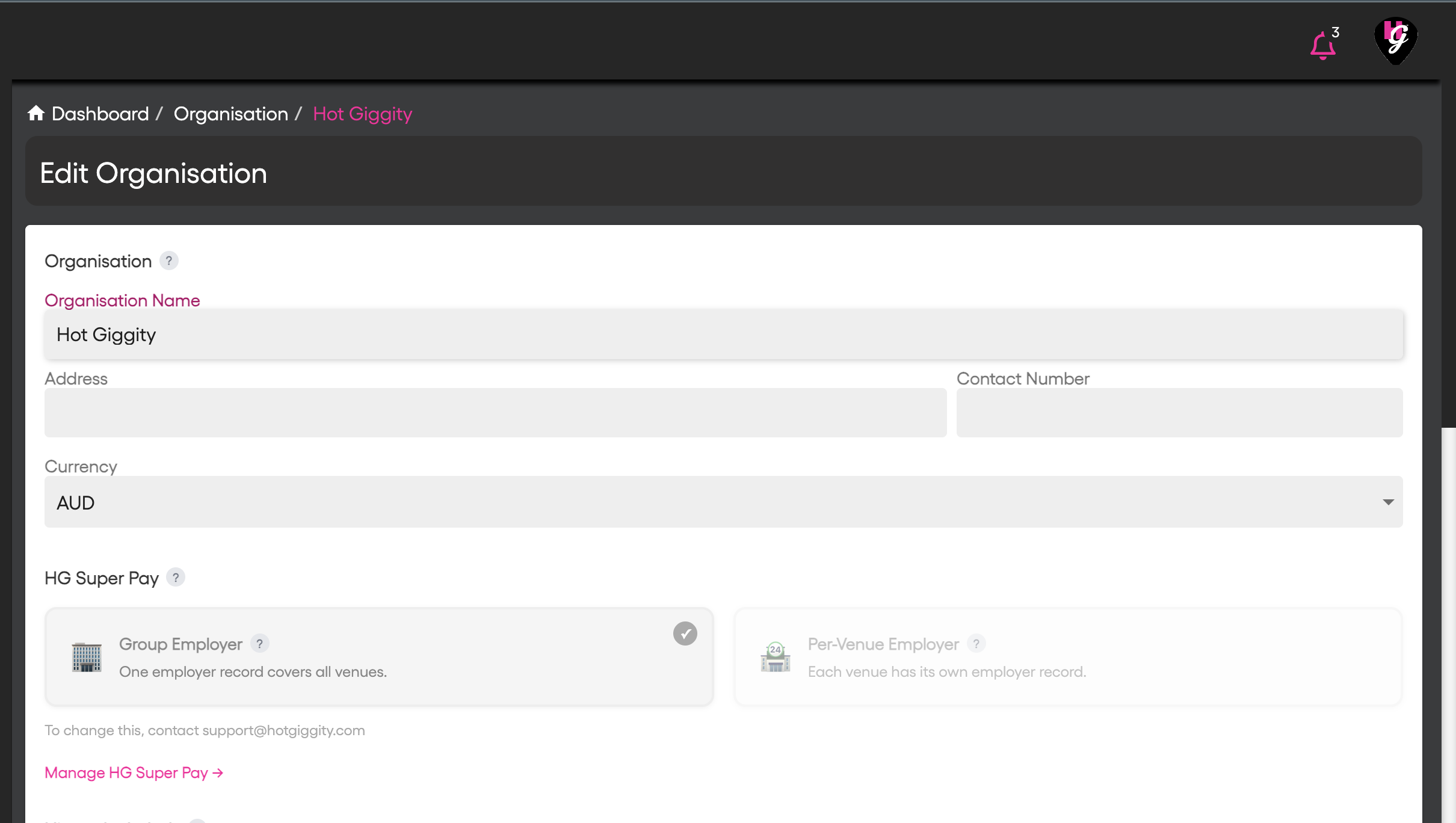
Step 1 - Select your HG Super Pay Model
Go to Manage - My Organisation - click the organisation whose super you want to manage. With only one available organisation, the hub opens it automatically.
Step 2 - Confirm the Employer Model and Venue
If prompted with Choose Your Employer Model, review the comparison above. Choose Group Employer or Per-Venue, read Are you sure?, then select Confirm only when the choice is correct.
The saved model appears as Group Employer or Per-Venue Employer near the page heading. If it is already set and looks wrong, stop and contact support.
Step 3 - Click Manage and Activate the HG Super Pay Add-On
On Overview, check the Add-on card. If it says Inactive, click Activate and complete the checkout that opens in a new tab.
- Group Employer: activate the shared group setup.
- Per-Venue Employer: activate the selected venue. Repeat for each venue that will use HG Super Pay; activating one does not activate the others.
Return to the hub and confirm Active. If checkout was cancelled, do not assume activation completed. If you see Billing must be set up before activating this add-on, ask the billing owner to complete billing setup.
Once active, Overview also shows Employer and This month cards. The monthly count and any displayed cost estimate are service-usage information, not proof that contributions have settled.
The hub tabs are:
| Tab | What it is for |
|---|---|
| Overview | Add-on status, employer status, monthly usage and quick actions. |
| Employer Setup | Register or update the employer details for the current context. |
| Employees | Sync artists, review employee details and check member/fund verification. |
| Contribution History | Search contributions in the current group or venue context. |
| Billing History | Per-Venue Employer only, with a real venue selected: review service-billing invoices. |
| Manage Card | Per-Venue Employer only, with a real venue selected: manage the subscription's billing cards. |
Inactive does not mean the tabs disappear: The four core tabs remain visible after a model is selected. With an inactive add-on, Employer Setup, Employees and Contribution History show HG Super Pay Not Active instead of their working content. The two per-venue billing tabs are not gated by add-on activation.
Step 4 - Register the Employer
Open Employer Setup after activation. Recheck your organisation and, in per-venue mode, the selected venue.
| Section | What to enter or review |
|---|---|
| Employer Details | Trading / Company Name and ABN for the responsible employer. |
| Contact Person | First and last name, email and mobile phone. |
| Registered Address | Street, suburb, state and postcode. |
| Contribution Bank Account | BSB, account number and account name for direct debits of submitted super contributions. |
| Refund Bank Account | Use Same as contribution account, or enter the separate refund account details. |
| Direct Debit Authority | Read Terms & Conditions and tick the authority only if you are authorised to agree. |
| Signatory | Signatory name and position. |
| Digital Signature | Use Draw or Upload Image. Use Clear Signature if you need to start again. |
Complete all required fields, click Register as Employer, review the confirmation and choose Confirm Registration.
Registration Submitted means the request has been sent, not that payments are ready. The confirmation advises approval can take 24–48 hours and says an email will be sent on completion. Check the actual status in the hub.
| Employer status | Meaning and next action |
|---|---|
| Not registered on Overview / Not Registered in the form | Registration has not been submitted. Complete Employer Setup. |
| Submitted - Awaiting Verification | Registration or details are still awaiting clearing-house verification. Wait for Active; contact support if it is delayed. |
| Active | The employer is verified in the current setup. Employee and ledger checks are still required before payment. |
For an existing employer, the form offers Update Employer and Confirm Update. Review any bank or identity change carefully and check the employer status again afterwards.
Per-venue setup: Repeat activation and Employer Setup for each venue that needs its own setup. Never copy another venue's ABN or bank details without confirming they belong to the responsible employer.
Step 5 - Check Artist Profiles and Sync Employees
Open Employees in the correct employer context. Use search, the mapped-status filter and pagination to find the artist.
Artists should complete their own Financial profile, including:
- Full legal name and date of birth.
- Address and Tax File Number.
- Super fund and member details, including the required fund identifiers.
The employee window displays profile information for review; it is not a form for venue staff to edit the artist's personal or super details. Follow any missing-information warnings and ask the artist to update their own profile.
| Employee state or action | What to do |
|---|---|
| Not Mapped → SYNC EMPLOYEE | Open the preview, check the details and missing-field warnings, then use Sync employee when ready. Sync may connect an existing employee rather than create a duplicate. |
| Mapped → VIEW | Review the current employee details. Mapped means connected to this employer context, not necessarily verified or ready to pay. |
| Mapped → UPDATE EMPLOYEE | When the system reports that details need updating, review the latest profile data and use Update employee. Complete the required update before payment and validate again. |
| VERIFY MVR | Request member/fund verification for a mapped employee once the employer is approved. Read the returned status and any reason. |
| DELETE | Review and confirm removal of the mapping. This disconnects the employee mapping; it does not delete the artist's Hot Giggity profile or reverse a submitted payment. |
Update and verification are different: UPDATE EMPLOYEE appears when the system flags changed employee details. A pending, rejected or timed-out MVR result does not itself make that update action appear. Do not repeatedly sync or delete mappings just to force a different verification status.
If sync or verification controls are disabled, check that the employer is Active. Refresh or revisit the tab after approval.
Step 6 - Review Member Verification
MVR checks the member's fund details. It is separate from profile completeness, employee mapping and payment settlement.
| Fund verification status | Meaning and next action |
|---|---|
| Not registered | The artist is not mapped in this context. Complete employee sync first. |
| Not reported | No verification status has been reported. Review the employee and use VERIFY MVR when available. |
| Pending | Verification is in progress. Wait for the result and recheck readiness; it is not proof of payment eligibility. |
| Verified | Fund details have been verified. Invoice, employer and ledger checks still apply. |
| Rejected | Review the reason. Ask the artist to correct their profile, complete UPDATE EMPLOYEE if offered, and verify again as appropriate. |
| Not supported | The fund does not support member verification. Check its details and follow validation feedback or ask support; do not treat this as Verified or assume it always blocks payment. |
| Timed out | No result arrived in time. Review the details and use the available verification action or ask support. An employee update is only available if the system flags one. |
A verification request can return a final result immediately; it does not always become Pending. If a request reports an error, read the message and recheck the current row before trying again.
Missing details do not remove an obligation: Plan profile completion before paying the artist. Where no fund is nominated, stapled-fund or default-fund rules may need attention outside this workflow. Ask the ATO or your adviser what applies.
Paying and Tracking Super
Step 7 - Click on the Super Ledgers item in the main navigation
Review the artist, booking/invoice, amount, Super Pay Ready and status. Grouped rows can contain several ledger items; expand them to inspect the individual entries.
Before submitting, check that:
- The artist's invoice or performance fee has been paid and correctly recorded as paid.
- If the Super Pay Ready column is not showing as a green tick, you will need to sync the artist in HG Super Pay - Employees.
A readiness tick is not a submitted payment: Super Pay Ready reflects the supplied super-readiness information. Ready to Pay, where shown, also takes invoice-paid information into account. Neither replaces the final Validate check.
Step 8 - Validate and Submit the Payment
Select the eligible ledger rows, then click Pay Super.
In the payment window, expand each artist to check the included items and amounts. Select only the contributions you intend to submit.
Click Validate. This checks both payees and the selected ledgers, including payer-related errors.
- If validation fails, read the payee and ledger reasons and resolve them in the correct employer/artist context.
- If you change the selection, validate it again.
- Proceed only when the selected items pass validation and Pay Now is enabled.
Click Pay Now to submit. Retain the payment reference and review the submission result.
Step 9 - Track Payments and Contribution History
Open Overview → Quick actions → Payments, or Payments in the sidebar, and use Payments I Made.
The hub shortcut sets the organisation filter in group mode or the selected-venue filter in per-venue mode. Recheck the filter and date range; do not assume every payment belongs to the employer you intended.
Open View for payment details, references, status and any available member/fund outcomes. Use Sync where available to request a status refresh.
For employee-level reconciliation, return to Contribution History in the hub:
- Confirm the organisation and, in per-venue mode, Select Venue.
- Set Start Date, End Date and Employee, or use All Employees.
- Click Search and use pagination for further results.
- Review Pay Date, Settled Date, amount, fund and status.
Group mode searches group-scoped contributions. Per-venue mode searches the selected employer context. History can be empty because of filters or because there are no matching contributions; it is not evidence that all obligations have been paid.
Step 10 - Review Billing, Cards and Cancellation
The Add-on card displays $1.50 ex GST per submission. This month shows the usage reported for the current setup, any available estimate and Billed 5th of next month. Confirm the applicable charging terms with support if you need to budget a pay run.
Service fees are separate from super contributions: the billing card pays add-on charges; the contribution bank account entered in Employer Setup funds submitted super.
- Group Employer: use Manage → Account Settings → Membership for account-level membership/add-on information and Manage → Account Settings → Payment Methods for account-level cards, where available.
- Per-Venue Employer: choose the venue, then use Billing History for its service invoices. In Manage Card, use Add Card, or a card's menu for Set as Default and Delete Card. Review the removal confirmation before selecting Yes, Remove; the last remaining card cannot be deleted through this control. These are not employee contribution records. Review each venue separately.
To cancel, open Overview for the correct group setup or selected venue and click Cancel on the Add-on card. Review Cancel HG Super Pay and select Yes, Cancel only when you intend to stop that subscription.
The dialog says processing stops at the end of the current billing period. Check the resulting subscription status and confirm the effective date with support if it is unclear. Do not rely on cancellation to stop or reverse a contribution already submitted, or to remove unpaid super obligations.
Troubleshooting & FAQ
Why can I see the menu but not open the group hub?
Menu access, page access and payment approval are separate. Select the correct group staff profile and organisation. Ask the owner or support to check group ownership, invoice access and setup if the hub redirects. A standalone venue's financial permission is not a substitute for group access.
Why is a venue missing from Select Venue?
Only accessible venues associated with the chosen organisation are listed. Reopen the hub and check the organisation first, then ask the owner to check your venue access. Do not configure a different venue as a workaround.
Why do I still see HG Super Pay Not Active?
Check the selected context and finish activation from Overview. In per-venue mode, another venue's active subscription does not activate this one. If checkout completed but the status still looks wrong after reopening the hub, contact support before paying again.
Why is the employer still awaiting verification?
Submitting the form is not approval. The confirmation advises 24–48 hours; check the current status rather than treating that estimate as guaranteed. Contact support about delays or corrections and allow time before any payment deadline.
The artist is mapped. Why can I not pay?
Mapping is only one requirement. Check missing profile details, employee updates, MVR results, the employer and subscription status, invoice-paid information and the final validation errors. A verified fund is not proof that the invoice is paid.
Why is UPDATE EMPLOYEE not available after a verification problem?
That action depends on the system identifying employee details that need updating, not the MVR status. Ask the artist to correct inaccurate profile information, recheck the employee row and follow the available actions. Contact support if the update you expect is not offered.
Can we change from Group Employer to Per-Venue Employer ourselves?
No self-service change is offered after confirmation. Contact support@hotgiggity.com. Do not assume employer records, employees, subscriptions or history will move automatically.
What if a contribution fails, is refunded or only partly completes?
Open View, read the payment and member-level outcomes and identify exactly which items failed. Correct the relevant employer, bank, artist or fund details. Confirm which items are still unpaid before resubmitting; do not repeat successful items.
A failed or refunded contribution does not satisfy the obligation. Do not assume that a retry gives you a new deadline. If a deadline may have been missed, consult the ATO or your adviser promptly.
Payment Status Reference
Ledger summaries and payment details use different levels of detail. Fund verification Pending is not the same as payment Pending.
| Status or display | What it means |
|---|---|
| Pending on a ledger | An unpaid ledger item exists. It is not evidence of submission. |
| Payment Created — Not Yet Submitted | A payment record exists but is not yet confirmed as submitted. Check before retrying. |
| Processing / Payment Submitted Successfully | Submission is in progress through the clearing house. It has not yet settled. |
| Debit Underway | The direct debit has started; this is not fund receipt. |
| Debit Successful — Transferring to Fund / Funds in Transit to Super Fund | Money is moving towards the fund. Check later outcomes. |
| Paid to Funds — Awaiting Acknowledgement | The payment is awaiting the fund's response; do not equate it with final settlement. |
| Green tick on a fully paid ledger / Payment Settled in payment details | The system reports the contribution as settled. Retain the reference and check member outcomes if reconciling a concern. |
| Payment Settled with Warnings | Settlement is reported with warnings. Review the affected items and follow up. |
| Partially Paid | Some items need attention. Check individual outcomes before any retry. |
| Failed, Payment Failed — Debit Error or Payment Failed — Fund Transfer Error | Payment did not complete as intended. Review the reason and affected items. |
| Refunded / Payment Refunded | Funds were returned; review the reason and any outstanding obligation. |
| Payment Cancelled | The payment was cancelled. Confirm whether the underlying contributions remain unpaid. |
| Recorded as Manually Settled | Recorded as paid outside HG Super Pay, not proof of processing through its gateway. Retain external payment evidence. |
| Unknown / Payment Status Unknown | Status is not established. Refresh/sync or contact support; do not assume success. |
Track through to the fund: A bank debit, successful validation or submission receipt is not proof that the fund received an allocatable contribution on time. Keep payment records and investigate warnings or missing member outcomes promptly.
Further Information
- ATO: Payment deadlines for Payday Super
- ATO: Work out if you have to pay super
- Creative Workplaces: Superannuation
- Hot Giggity: Super for Sole Traders - What Hirers Must Do
- Standalone venues: HG Super Pay setup and payment guide
- Contact Hot Giggity Support
This article provides general information about using HG Super Pay. It does not determine a worker's entitlement to super, your legal employer identity or your specific deadline, and is not legal, tax or financial advice. Ask the ATO, your accountant or another qualified adviser about your circumstances.
Was this article helpful?
That’s Great!
Thank you for your feedback
Sorry! We couldn't be helpful
Thank you for your feedback
Feedback sent
We appreciate your effort and will try to fix the article