This guide walks through the complete workflow for processing superannuation payments through Xero integration.
Prerequisites
A Hot Giggity Pro Plan is required for this functionality.
An active Xero connection configured in Hot Giggity.
A Xero user account with permissions to manage Payroll and Payruns.
Your Xero account is registered for automatic superannuation payments. Read more in this Xero support article or watch this video.
Step 1: Reconnect your Xero Account
If you previously connected Hot Giggity to Xero, you must reconnect to enable the new Xero Payroll integration.
Go to Manage - Xero Settings - Connected Account and click Reconnect.
This refreshes your permissions and activates the payroll connection used for super payments.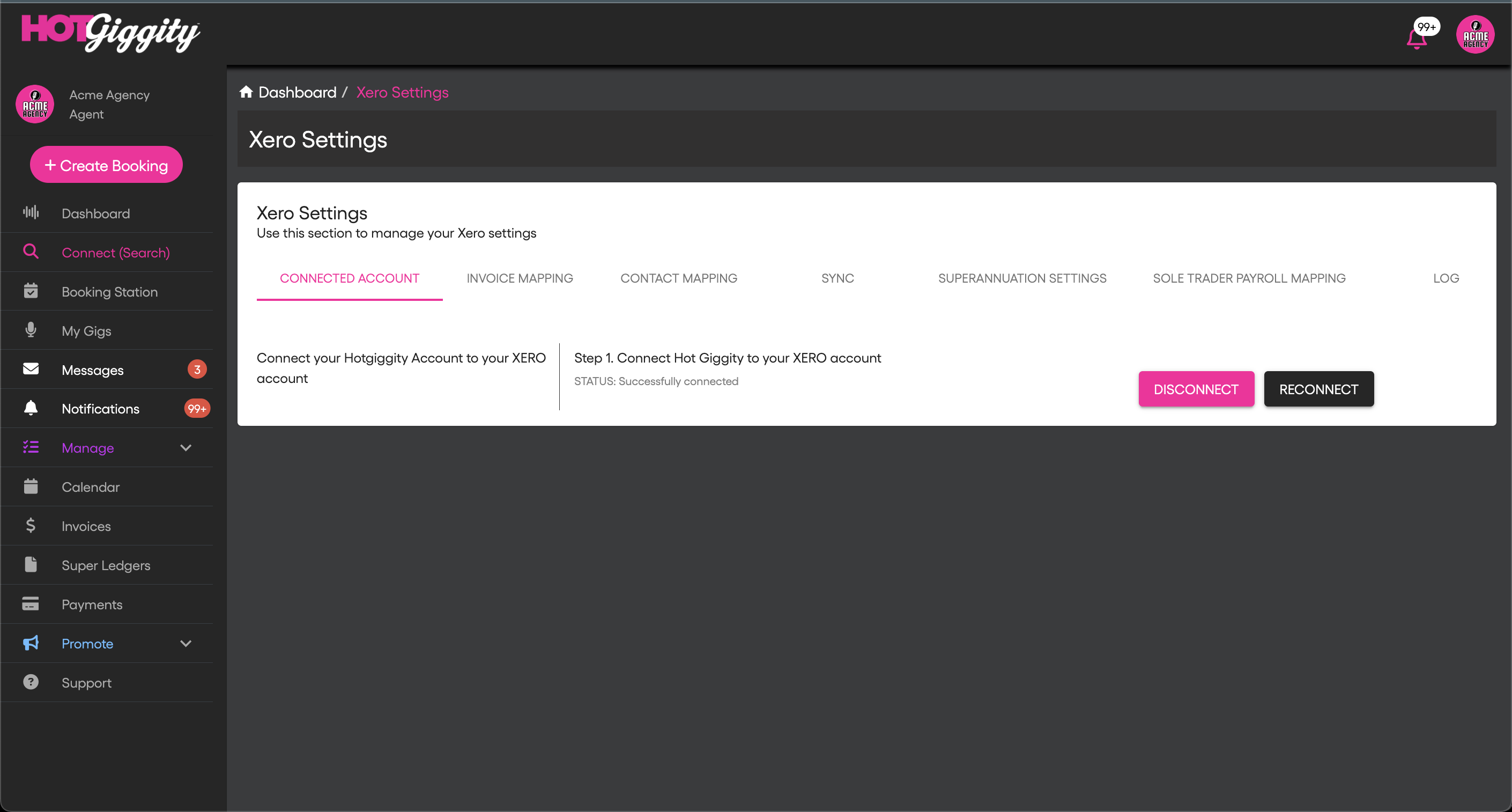
Step 2: Configure superannuation settings
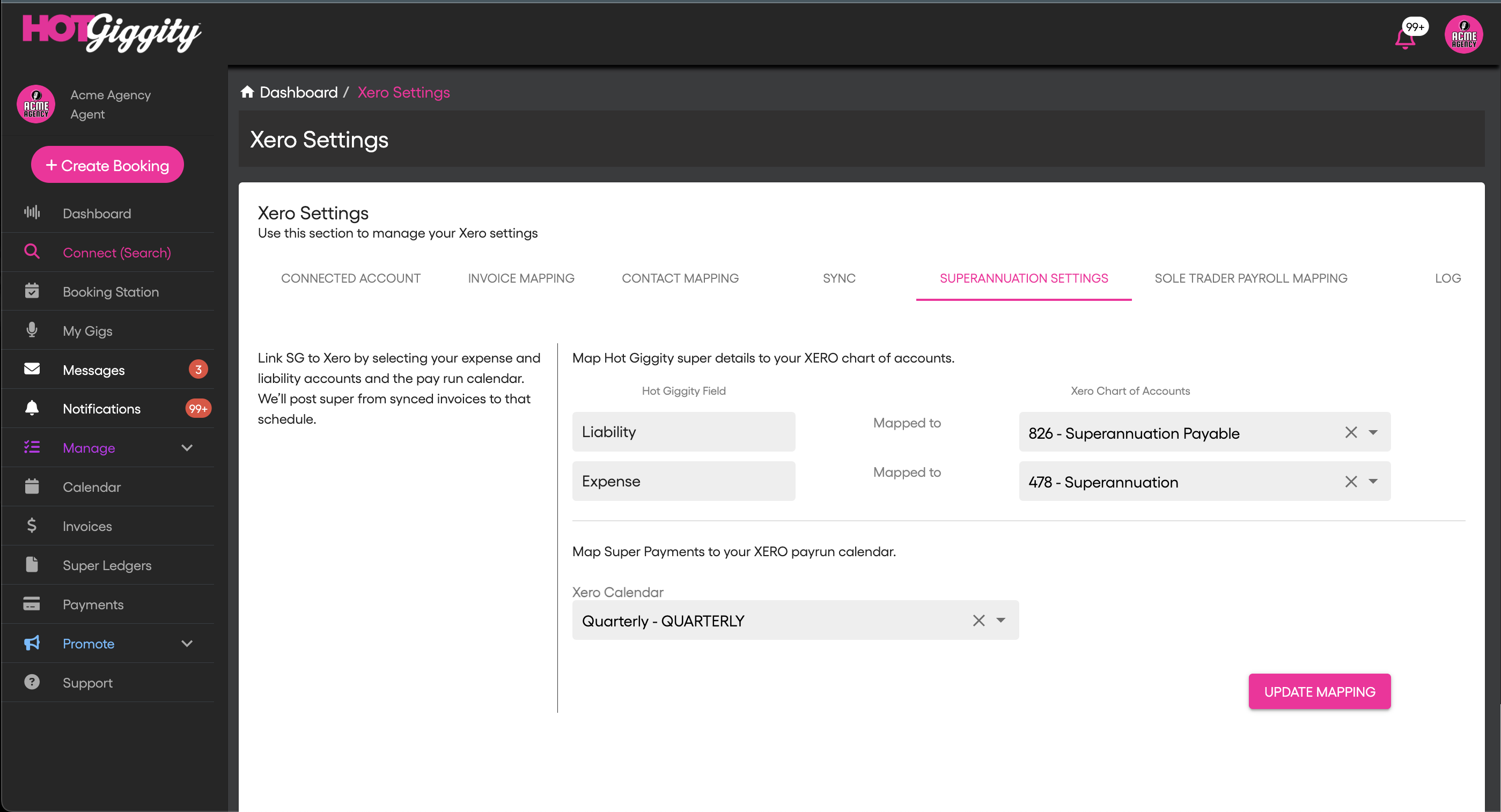
Go to XERO Settings, Superannuation Settings and set:
Liability Account: Superannuation Payable
Expense Account: Superannuation
These settings determine how super transactions are recorded in your Xero accounts.
Step 3: Set up the Xero pay calendar
In Hot Giggity, select a Xero Calendar with type Quarterly.
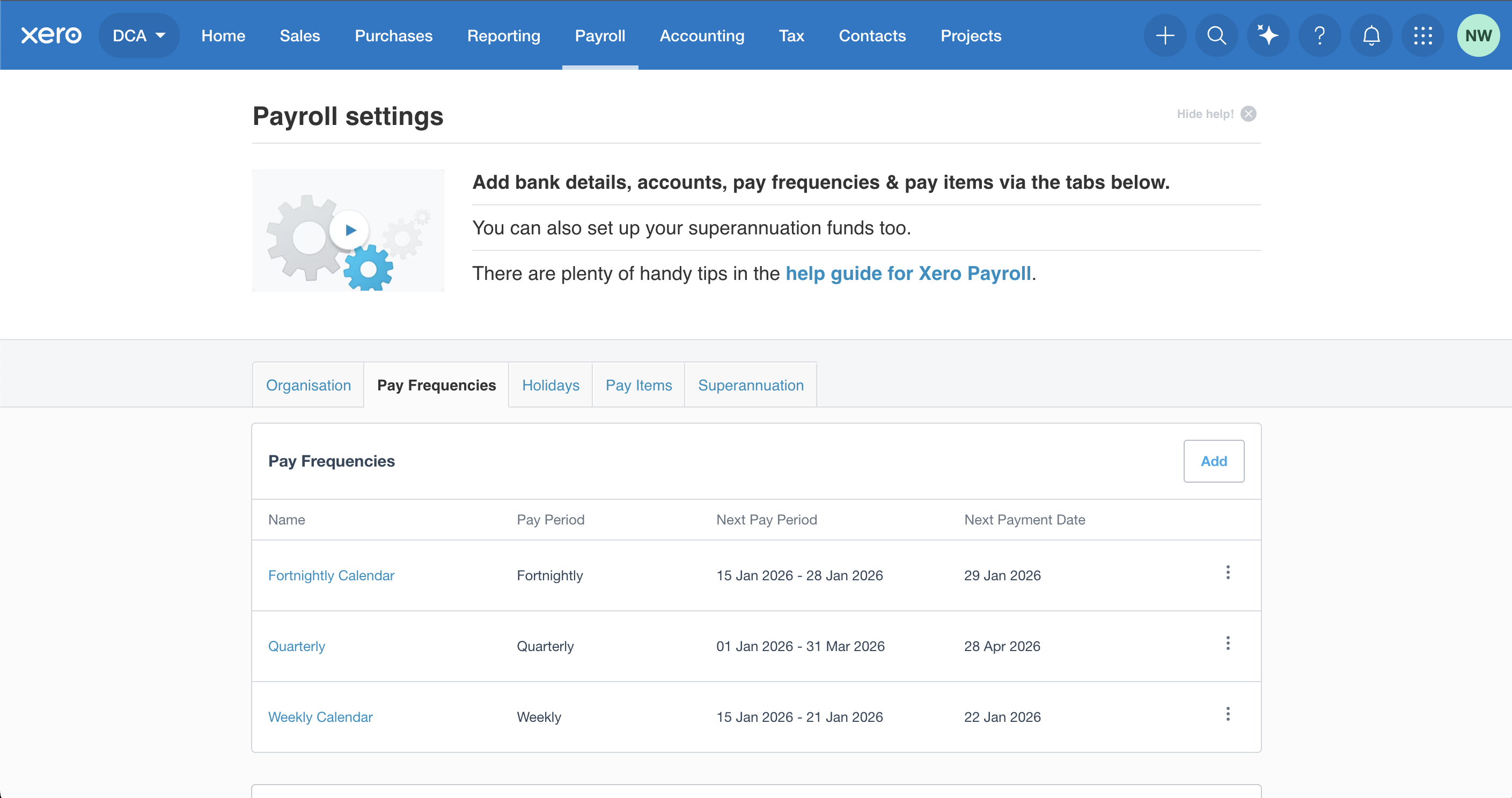
If no quarterly calendar exists, create one in Xero:
Log into Xero
Go to Payroll → Payroll Settings
Click Pay Calendars (or Pay Frequencies, depending on your Xero view)
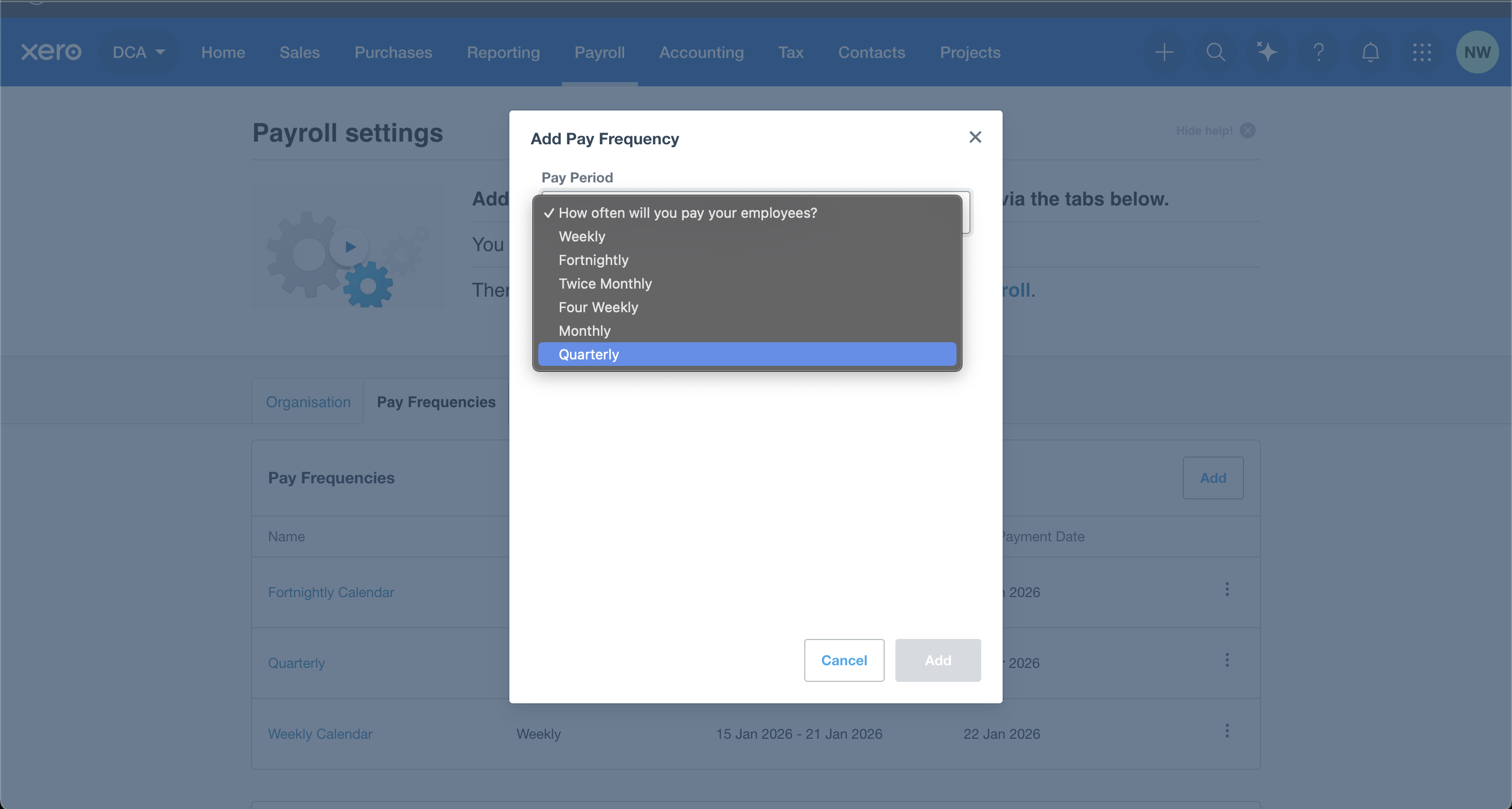
Click Add if no quarterly option exists
Select Quarterly
Return to Hot Giggity and refresh — the quarterly calendar should now appear in the Xero Calendar field.
Step 4: Sole trader payroll mapping
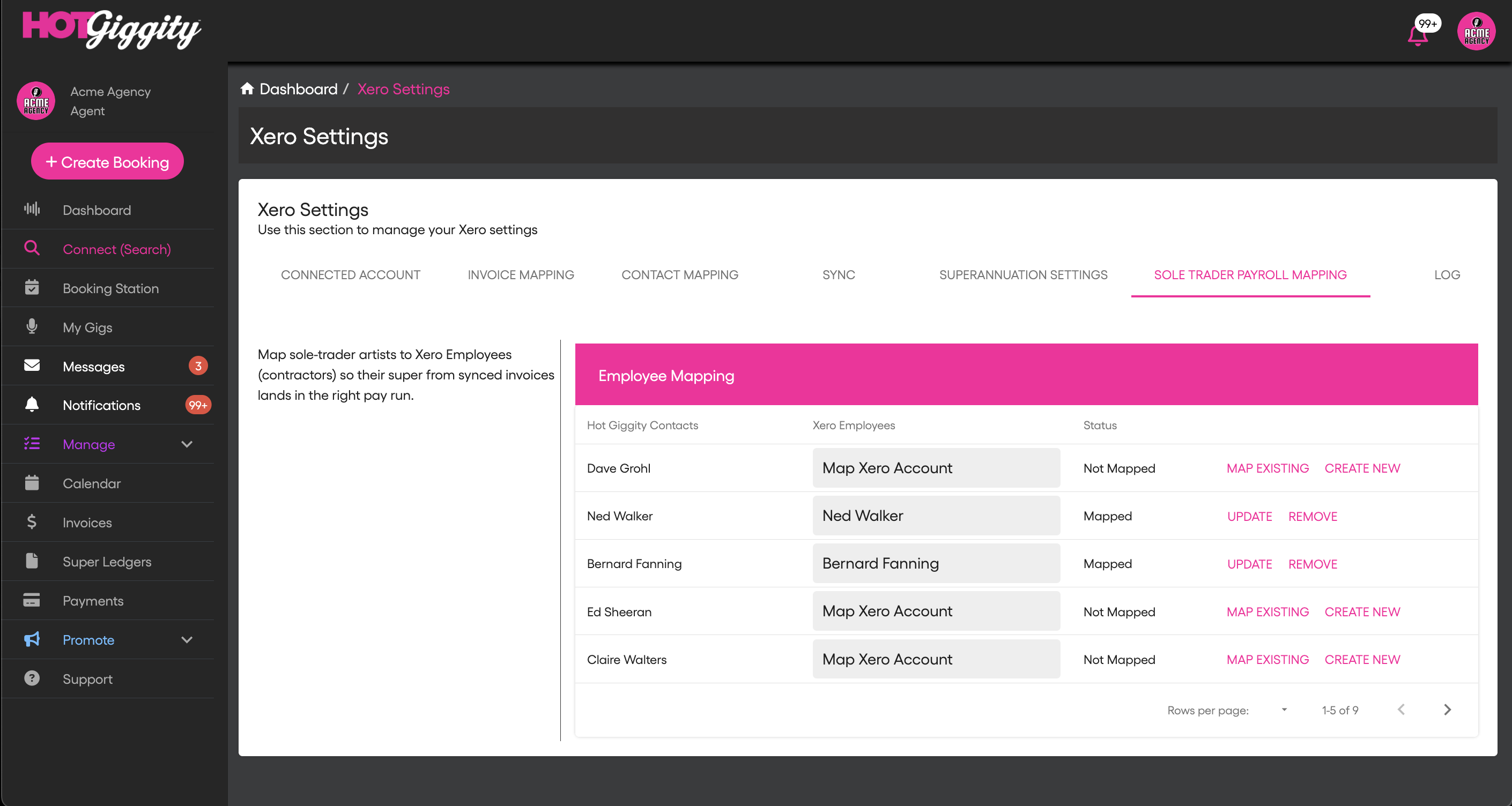
Go to Sole Trader Payroll Mapping to link Hot Giggity sole traders with Xero employees.
If you are syncing sole traders for the first time, for each sole trader, click Crew New
This creates a new employee record in Xero with the required details, including:
- Name
- Date of birth
- Super details
- Tax File Number (TFN)
- Employment type: Contractor
- Income type: Labour Hire
Important: The artist must add their TFN for super payments to be processed in Xero.
This mapping ensures super payments are correctly attributed to each payee in Xero.
Troubleshooting: “Create New Employee” failed
If creating a new employee fails:
1. Check the musician’s super setup
Confirm the musician has completed their super details in Hot Giggity (fund name, member number, ABN/USI, and TFN). You can check this via Manage → My Acts — the Super Details column should show a green tick.
2. Retry
After updating details, click Create New again.
3. Contact support
Email support@hotgiggity.com with a screenshot of the error.
Step 5: Send Super Payments to XERO
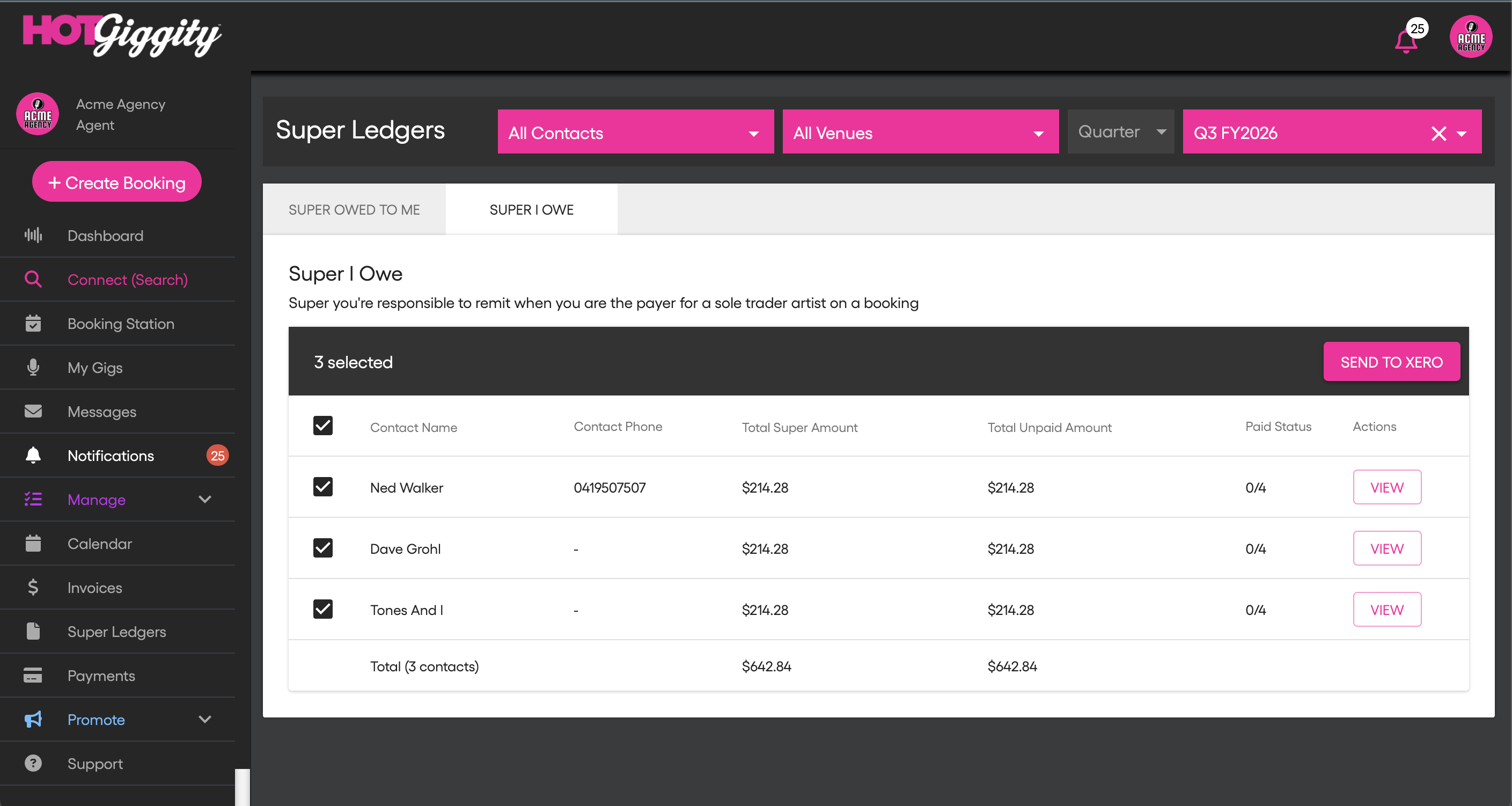
5.1 Navigate to the Super Ledger
Go to Super Ledger
Select the Super I Owe tab
5.2 Filter by quarter
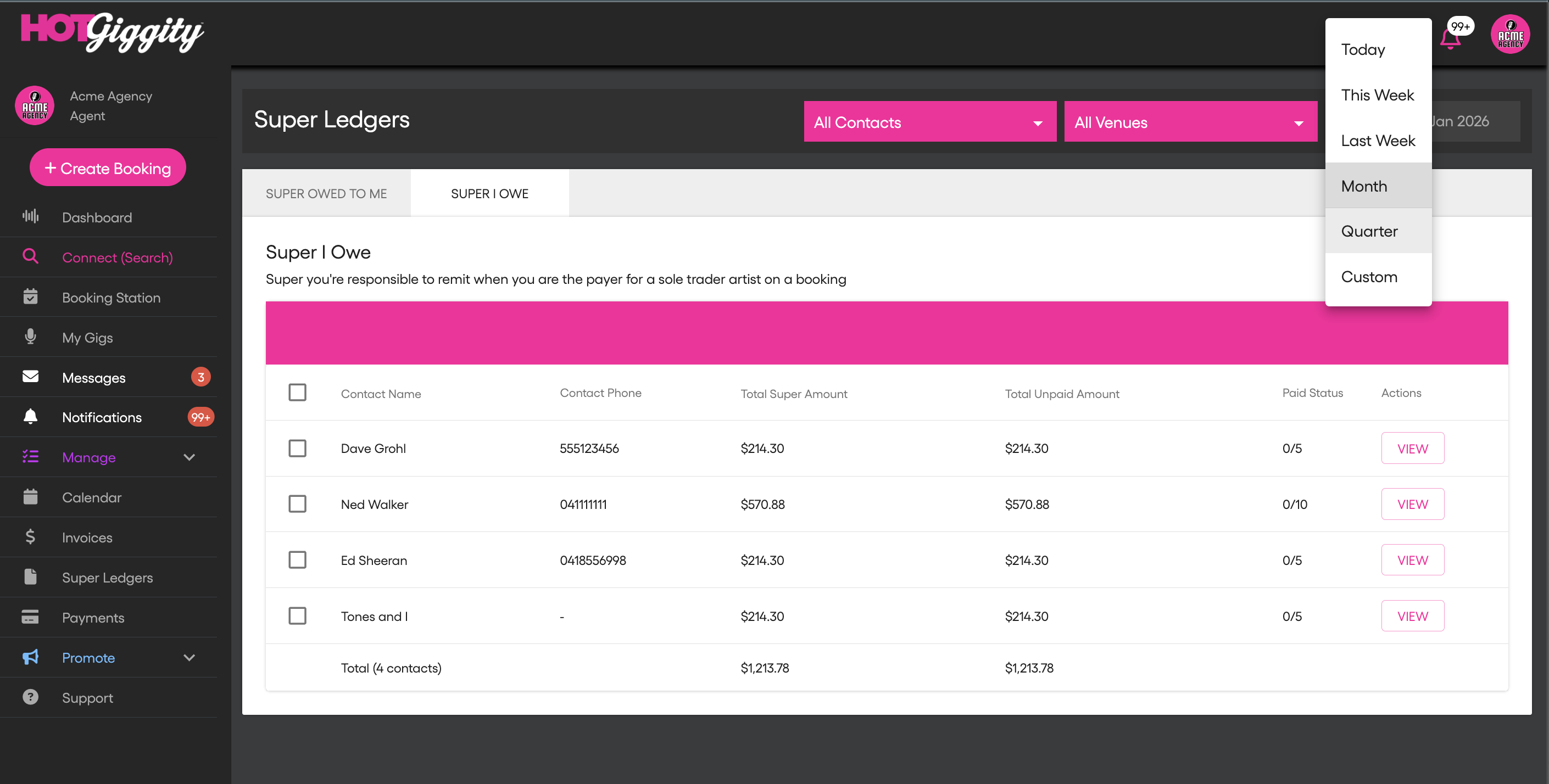
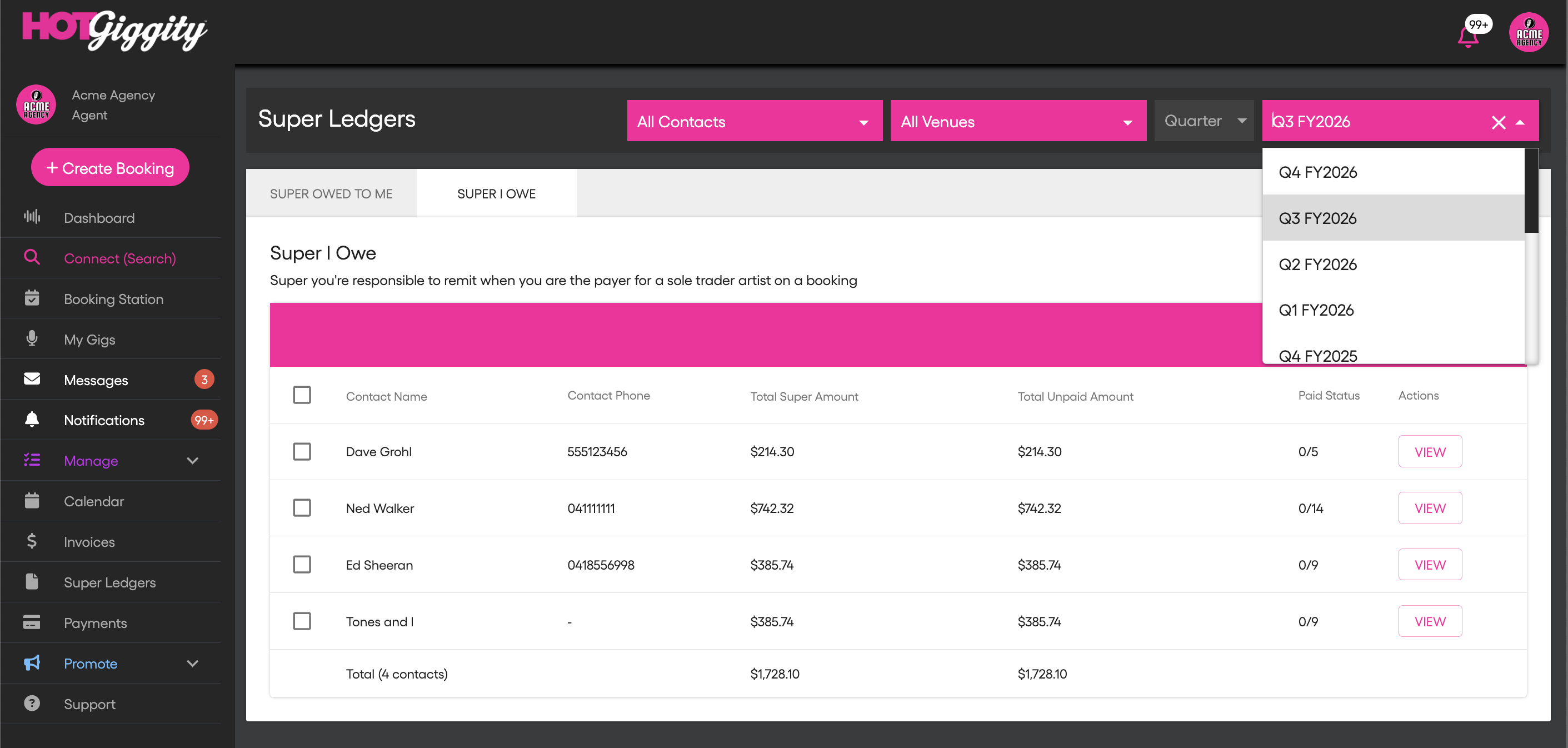
Change the date filter to Quarter. This is required to push to the XERO quarterly pay calendar.
Select the quarter you’re processing
5.3 View Artist Payment Breakdown (optional)
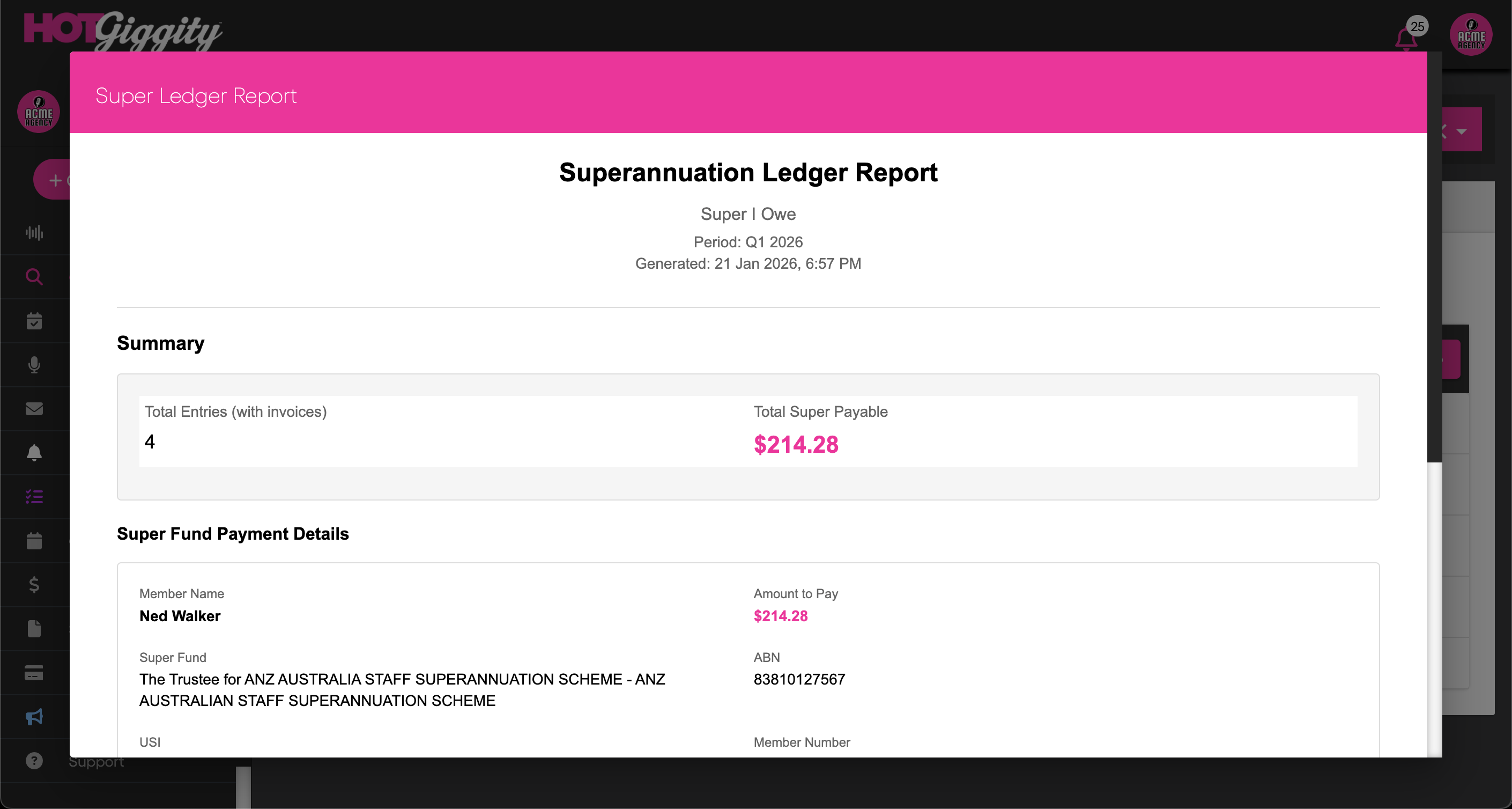
Click View next to an artist to open a Super Ledger Report, showing:
Total super to be paid
The artist’s super fund details
A gig-by-gig breakdown of super amounts
This can be downloaded as a PDF if required.
5.4 Select payees
Select the payees you want to include in the super pay run. This will activate the Send To Xero button.
5.5 Send to XERO
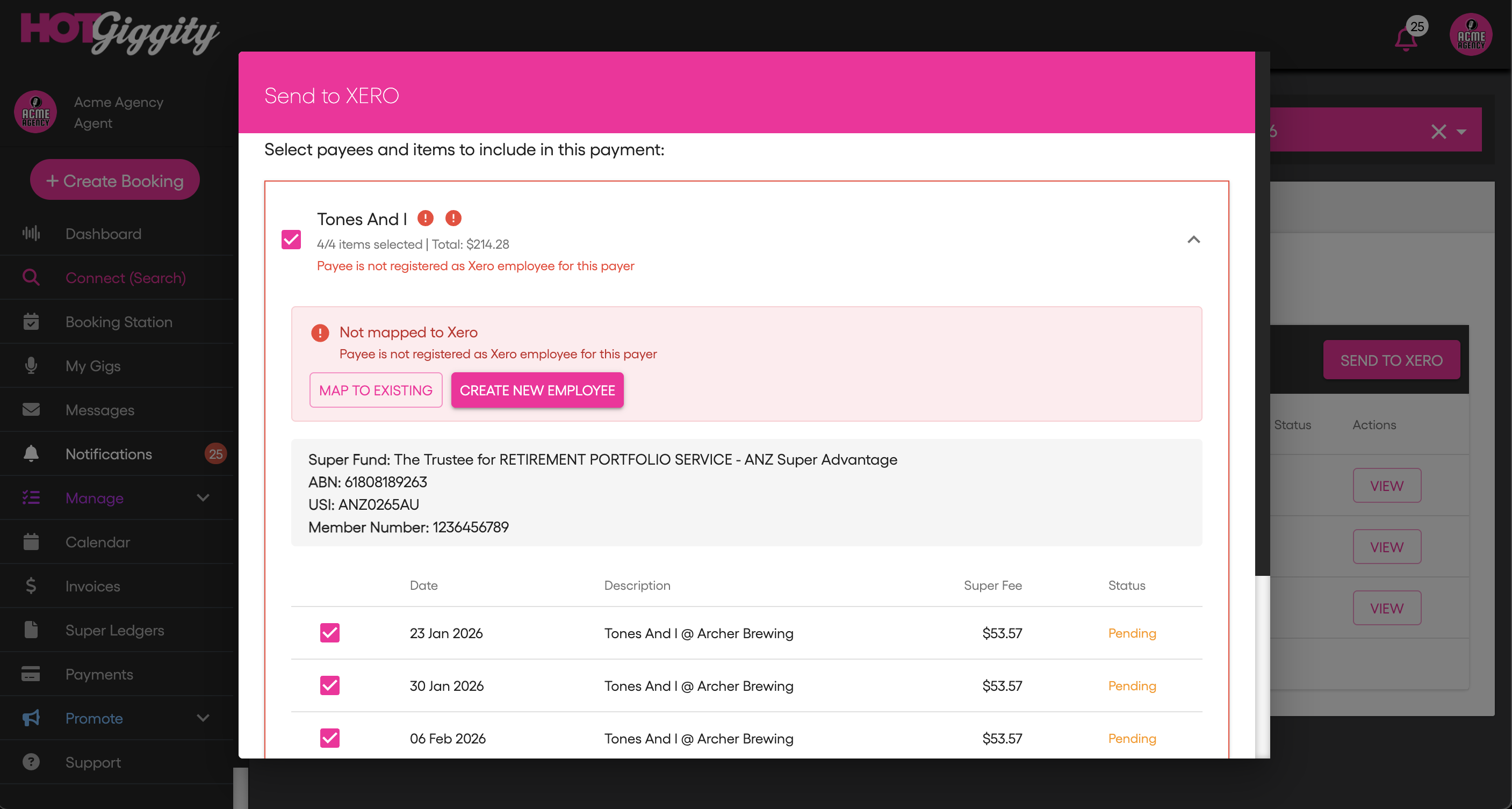
Click Send to Xero to create a Draft Pay Run with all selected payments in Xero.
If Hot Giggity detects a payee is not mapped to a Xero employee, you will see a prompt allowing you to:
Map to Existing (returns you to Sole Trader Payroll Mapping)
Create New (creates a new Xero employee record)
After resolving the mappings:
Scroll down
Click Submit to Xero
Step 6: Finalise in Xero
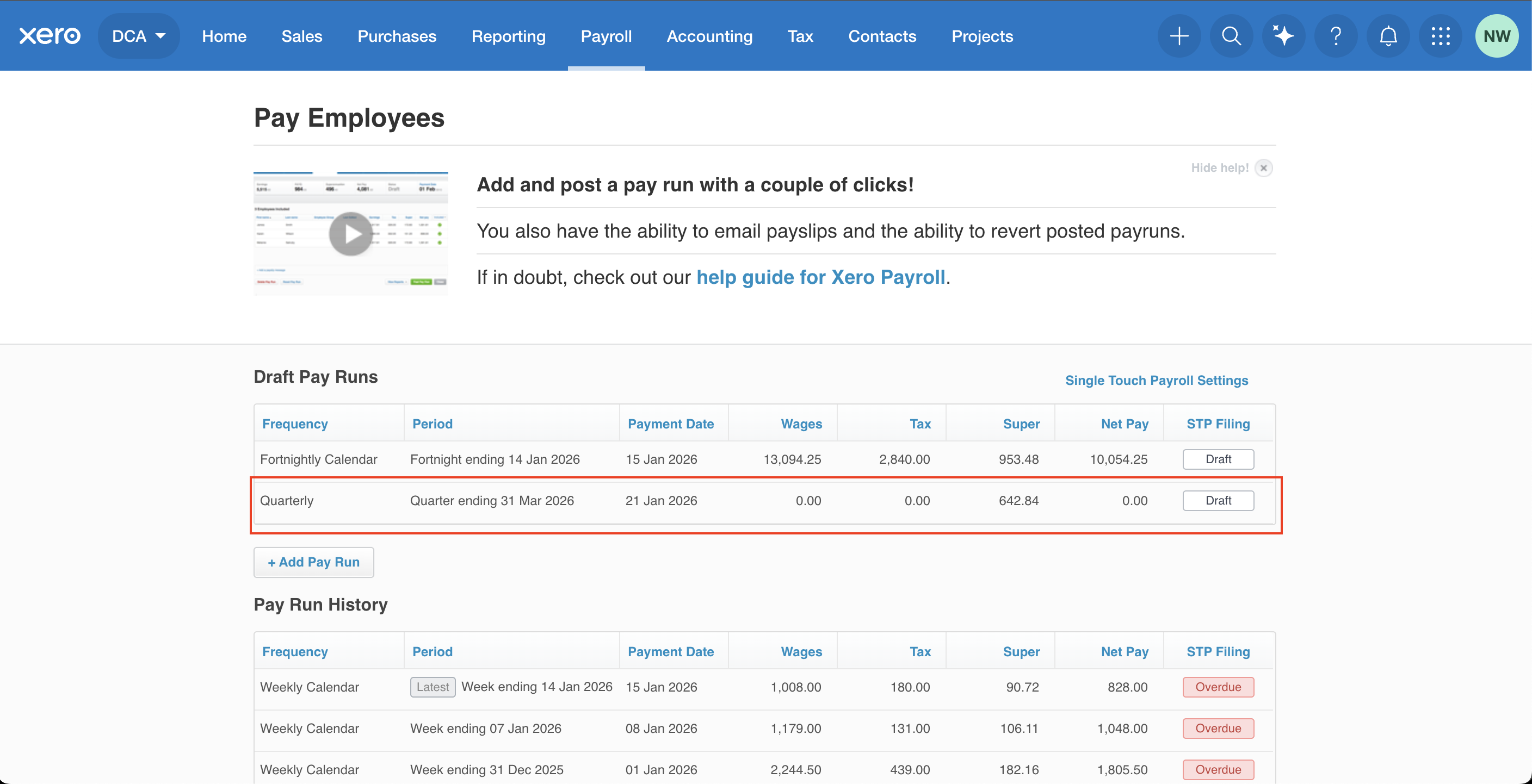
6.1 Post the pay run
Log in to Xero
Go to Payroll → Pay Employees
View Draft Pay Runs. You will see the quarter draft pay run created by Hot Giggity.
Click the Quarterly Pay Run
6.2 Review included super amounts
Open the pay run to review all artists and amounts included in this quarter.
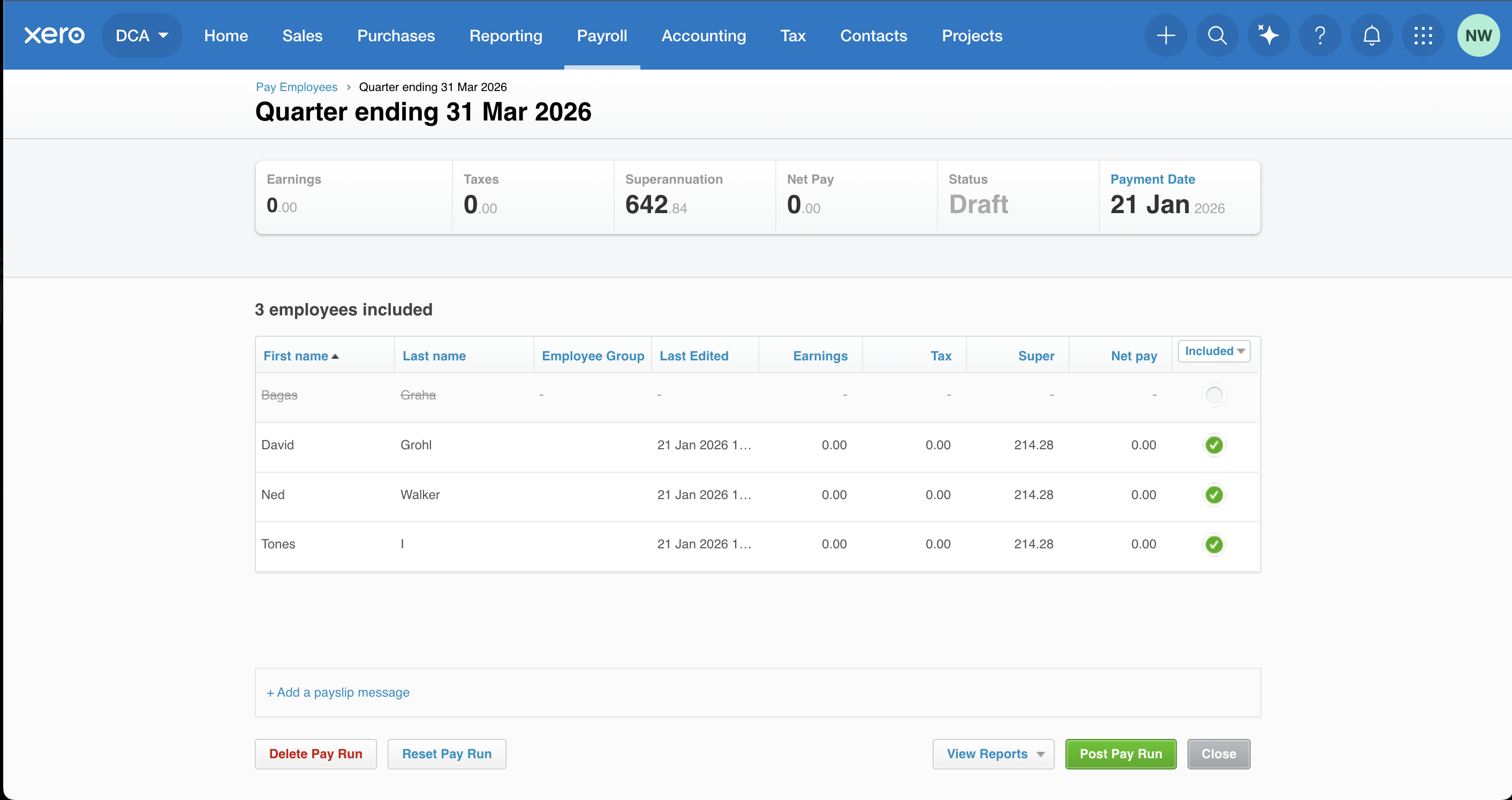
6.3 Post the pay run
Click Post Pay Run, then click Post Pay Run again to confirm.
Important: Posted means the pay run is finalised in Xero.
It does not necessarily mean the super has been paid to the super funds yet.
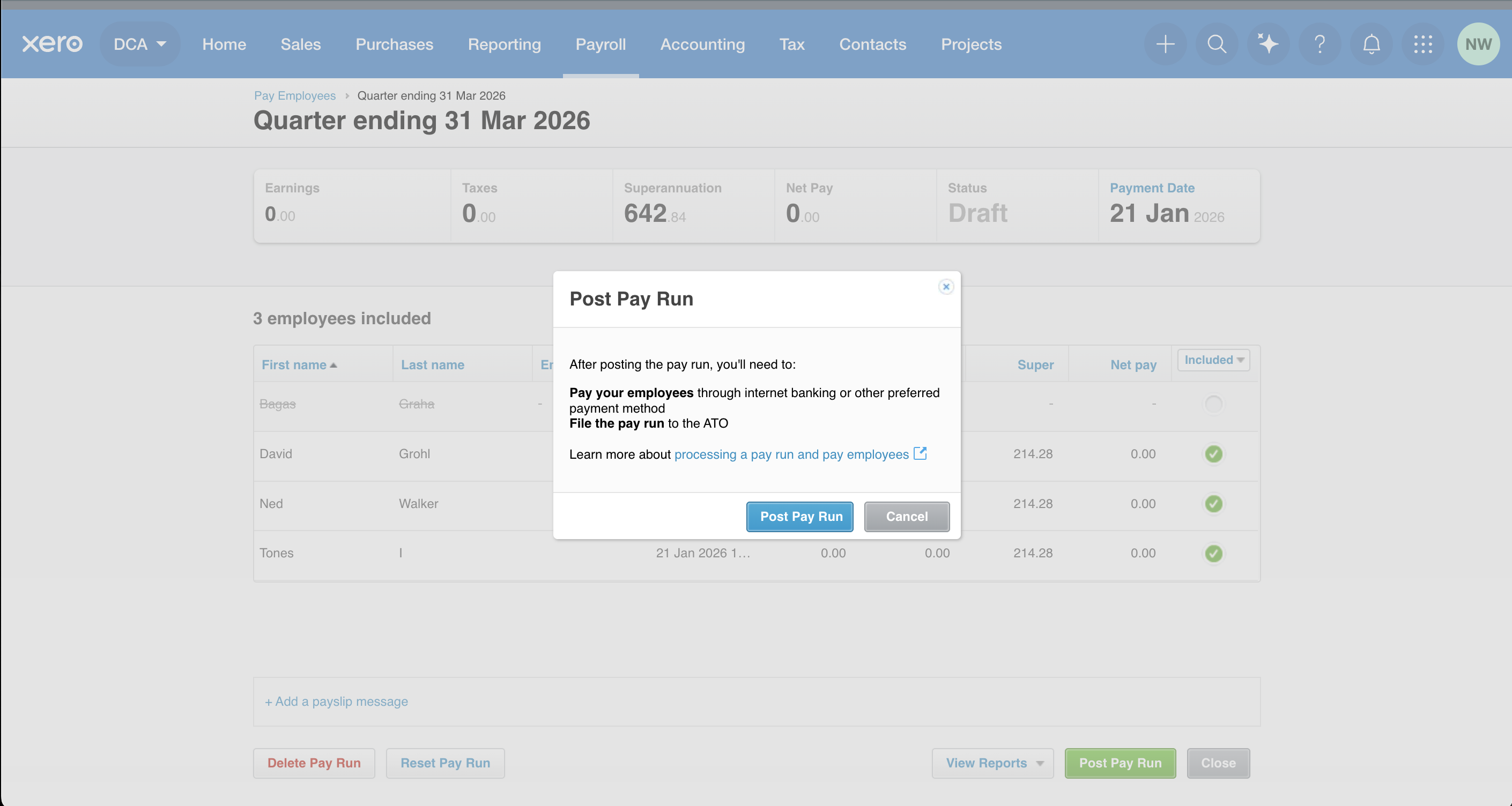
Important: Once the payment status is Posted, Hot Giggity’s role is complete. To actually pay super to super funds, you must complete the payment process in Xero.
6.4 Pay super in Xero
After posting the pay run:
Open the posted pay run
Follow Xero’s steps to submit the super payment to the clearing house
Xero will distribute amounts to each employee’s super fund
For more information on this process in Xero, visit this Xero support article or watch the video below
7. Payment Status synchronisation
Payment status updates in Hot Giggity automatically within 30 minutes, or you can sync manually:
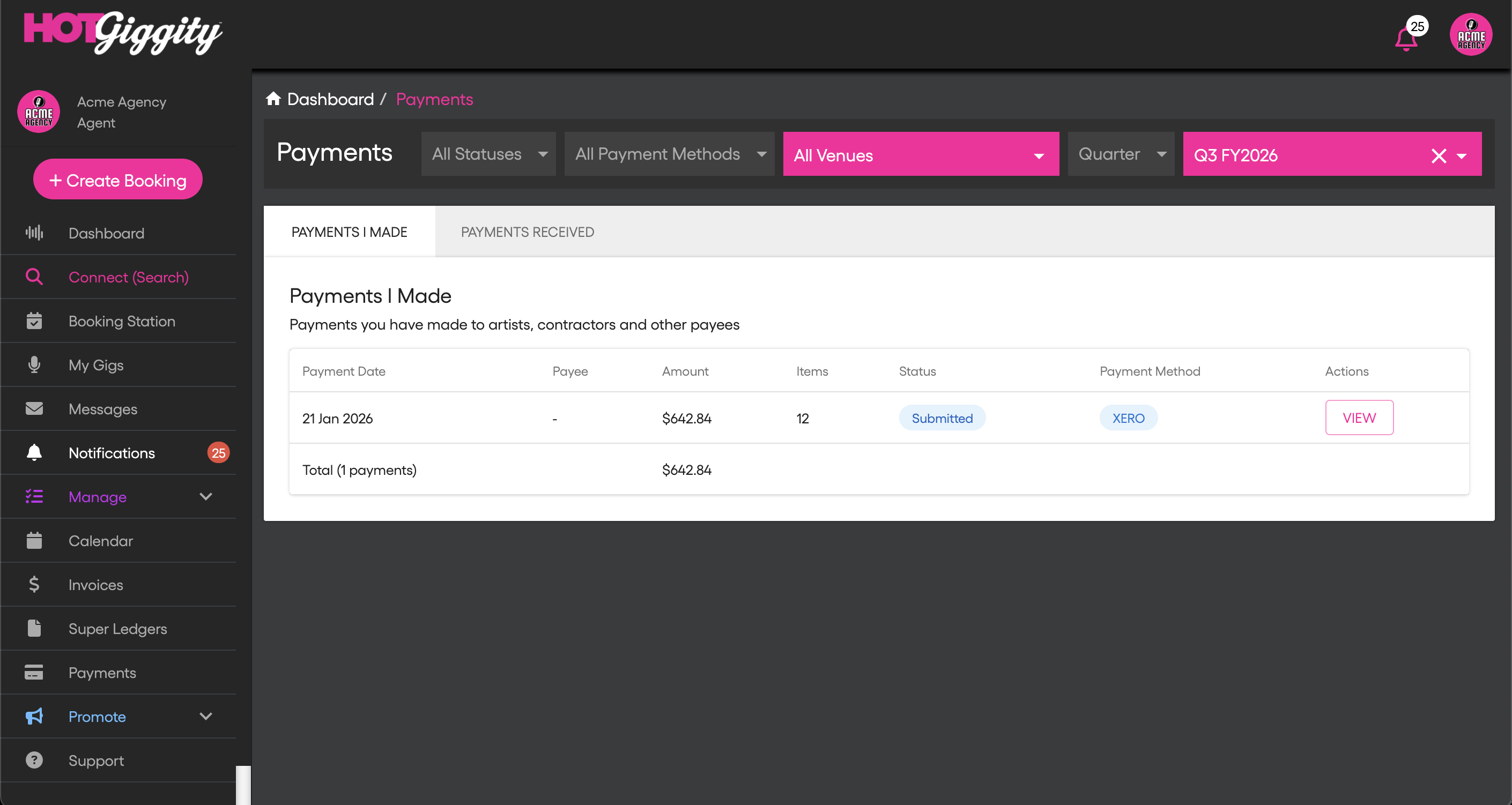
Go to Payments
Click View on the payment
Click Update Status to sync from Xero
This updates the pay run status based on Xero.
Super Leder statuses:
Pending (not yet sent to XERO) → Processing (Submitted to XERO), Posted - (Pay run posted in Xero), Paid (manual - super paid)
Payment tab statuses:
Pending (payment created in Hot Giggity) → Submitted (sent to clearing XERO pay run - status draft) → Posted (pay run posted in Xero) → Settled (manually marked as paid)
8. Marking As Paid (manual)
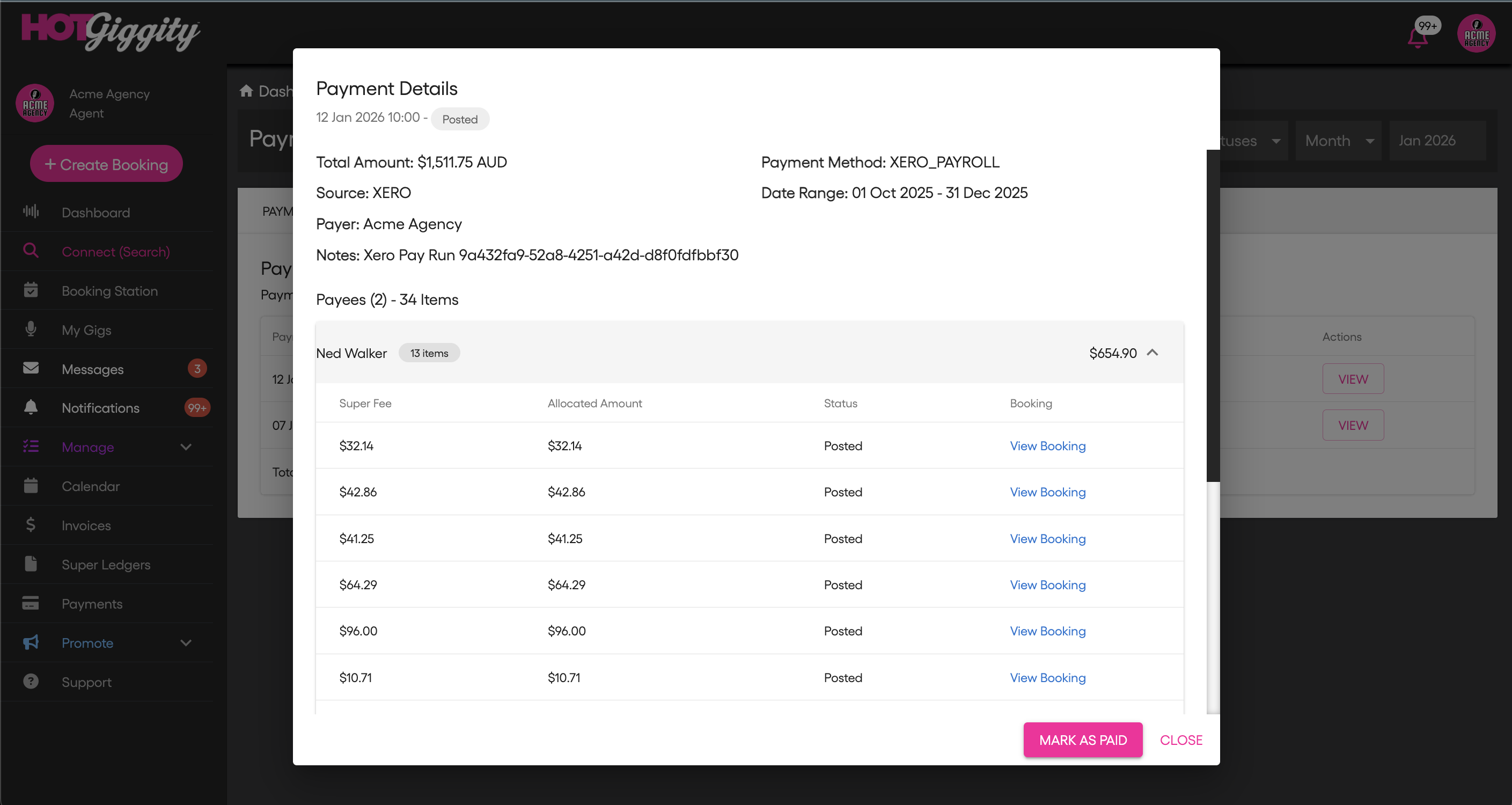
Xero does not provide an API signal confirming when a superannuation has been paid to the superannuation funds. For this reason, you must manually mark the payment as Paid in Hot Giggity once you’ve confirmed the super payment has been processed in Xero.
Go to Payments
Click View on the payment
Tick the checkbox to the left of Payees (select all)
Click Mark as Paid
This will update all artist super payments, and super ledger items as Paid. A notification will be sent to artists and their super ledger status will update accordingly.
Logging system
Go to Payments
Click View on the payment
Tick the checkbox to the left of Payees (select all)
Click Mark as Paid
Hot Giggity logs all Xero integration activities and errors.
Viewing logs
Go to Manage Xero → Log
Review recent integration activity and errors
Understanding log entries
Success entries confirm operations completed
Error entries indicate issues and trigger notifications
Troubleshooting with logs
If you need help, email support@hotgiggity.com and include the log error details (or a screenshot).
Important notes
Single active pay run limitation
Xero can only have one active draft pay run at a time for a given calendar. If you need to create a new pay run:
Option A: Post the existing pay run in Xero
Option B: Delete the existing draft pay run in Xero
Only after the current pay run is posted or deleted can you create a new one.
Adding to existing payments
You can add more super ledger entries to an existing payment only if:
The entries fall within the pay run date range, AND
The pay run is still Submitted / Draft (not Posted)
Was this article helpful?
That’s Great!
Thank you for your feedback
Sorry! We couldn't be helpful
Thank you for your feedback
Feedback sent
We appreciate your effort and will try to fix the article